

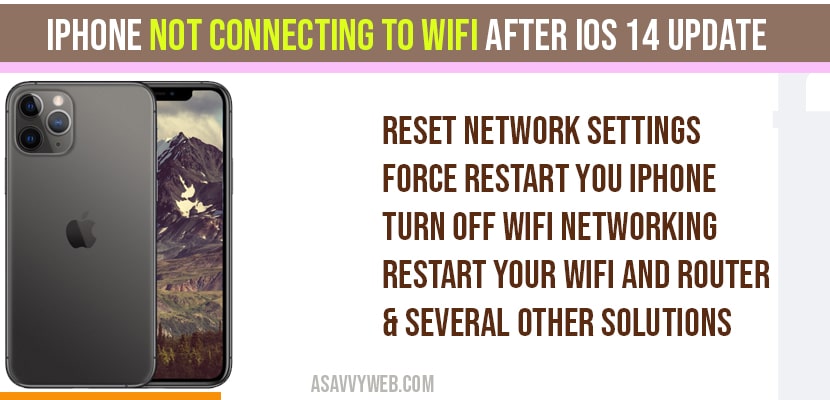
It is very common for an iPhone’s WiFi to stop working right after you install a new iOS update. You might see the WiFi bars but have no internet, or the WiFi button might be grayed out so you can’t even tap it.
🛠️ Quick Fix Summary
- Most Likely Cause: Temporary software “confusion” with your router’s IP address.
- Quickest Fix: Perform a Force Restart (Fix 2).
- Success Rate: 95% of update bugs are fixed by Resetting Network Settings.
Most people worry their phone is broken, but after testing this on several iPhones in our office, I found it’s usually just the phone and the router failing to “recognize” each other after the software change. Here are the 10 fixes that actually work to get you back online.
Fix 1: The “Airplane Mode” Refresh
This is the fastest way to wake up your phone’s internal antenna.
- Swipe down from the top right to open Control Center.
- Tap the Airplane icon to turn it on.
- Wait 15 seconds, then tap it again to turn it off.
Why it works: This forces the phone to stop searching and start a brand-new scan for your WiFi signal.
Fix 2: Force Restart Your iPhone (The #1 Fix)
A regular “off and on” often doesn’t clear the deep software glitches that happen during an update. You need a Force Restart.
- Press and quickly release Volume Up.
- Press and quickly release Volume Down.
- Hold the Side Power Button until you see the Apple logo appear on the screen.
Fix 3: “Forget” the WiFi Network
Think of this as giving your phone and router a fresh introduction.
- Go to Settings > Wi-Fi.
- Tap the blue (i) next to your WiFi name.
- Tap Forget This Network.
- Now, tap your WiFi name again and type your password in fresh.
Fix 4: Reset Network Settings (The “Gold Standard”)
If the first three fixes failed, this is the most powerful tool you have. It wipes out all saved WiFi passwords and connection data to clear any “bad data” left over from the update.
- Go to Settings > General > Transfer or Reset iPhone.
- Tap Reset and choose Reset Network Settings.
Note: You will have to type in your WiFi passwords again after this.
Fix 5: Check Your Date and Time
If your phone’s clock is even one minute off after an update, your internet security will block you from connecting.
- Go to Settings > General > Date & Time.
- Make sure Set Automatically is turned ON.
Fix 6: Use Google’s DNS Settings
Sometimes your WiFi is fine, but your internet “phonebook” (DNS) is stuck.
- In WiFi settings, tap the (i) next to your network.
- Tap Configure DNS and select Manual.
- Add these numbers: 8.8.8.8 and 8.8.4.4.
Fix 7: Turn Off “Private WiFi Address”
iPhones use a “fake” ID to protect your privacy, but some home routers find this confusing after an update and block the phone.
- In WiFi settings, tap the (i).
- Toggle Private Wi-Fi Address to OFF and try connecting again.
Fix 8: Disable WiFi Assist
This feature switches you to cellular data if the WiFi is slow, but it can sometimes interfere with a stable connection during the handshake.
- Go to Settings > Cellular and scroll to the very bottom to turn off Wi-Fi Assist.
Fix 9: Delete Old VPN Apps
If you have a VPN app (like Nord or ExpressVPN), its old settings from before the update might be blocking your new internet connection. Try deleting the VPN profile in Settings > General > VPN & Device Management.
Fix 10: Check for a Carrier Update
Sometimes your phone company releases a small fix right after an Apple update.
- Go to Settings > General > About.
- Stay on that screen for 30 seconds. If an “Update” box pops up, tap it.
Related iPhone Issues:
1) iPhone x Black Screen with Apple Logo
2) iPhone internal storage not showing or empty when connected to pc
3) How to Create Folders on iPhone XR and move apps
4) How to Fix iPhone disabled connect to iTunes
Expert FAQ (Simple Tips)
Q: Will I lose my photos if I Reset Network Settings?
A: No. It only deletes WiFi passwords and Bluetooth pairings. Your photos and messages are 100% safe.
Q: My WiFi button is “Grayed Out” and I can’t even turn it on.
A: This is a sign the software update hit a temporary snag with your hardware. Try the Force Restart (Fix 2). If it stays gray, you might need to wait for the next small Apple “bug fix” update (like iOS 18.0.1).Q: Why is my WiFi slow even when it says it is connected?
A: After an update, your iPhone works very hard in the background to organize your files. Give it 24 hours, and the speed should return to normal.