

When your LG Smart TV displays the “Could not establish a connection to access point” error, it indicates a Handshake Failure at the Network Layer. Unlike a simple “wrong password” error, a handshake failure means the TV’s wireless chipset successfully communicated with the router but failed to finalize the DHCP Lease or the DNS Resolution protocol.
LG webOS Network Handshake Diagnostic Hub
| Identify Connection Symptom | Expert Solution Path |
|---|---|
Could Not Establish Connection The TV sees the router but rejects the IP handshake. |
Manual DNS Override |
WiFi Turned Off / Grayed Out The WiFi toggle refuses to move to the ‘ON’ position. |
Hardware Ribbon Check |
At asavvyweb, our technical lead Vangari Divya (M.Tech) conducted a forensic teardown of the webOS network stack. We discovered that most connection issues are not caused by the router, but by NVRAM Storage Stalls and, in many cases, a physical design flaw in the internal WiFi ribbon cable. This guide provides the engineering-level logic needed to restore your connection in under ten minutes.
The Engineering “Why” – WIFI Handshake vs. Hardware
- DHCP Lease Stalls: Every 24-72 hours, your router assigns a new IP address to your TV. If the webOS kernel fails to release the old IP, the router blocks the connection as a “Conflict.”
- The “Crimped Cable” Issue: In several LG models (2018-2024), the WiFi module is connected to the mainboard by a flat ribbon cable. In our lab, we found these cables are often tightly folded, leading to micro-fractures in the signal traces over time.
- TLS 1.3 Mismatch: If your TV’s “Time & Date” is manual and incorrect, the SSL/TLS security certificate for the LG Content Store will be rejected, resulting in “No Internet” even while connected to WiFi.
10 Verified Ways to Fix LG WiFi
Method 1: The 60-Second Deep Power Reset (Flush NVRAM)
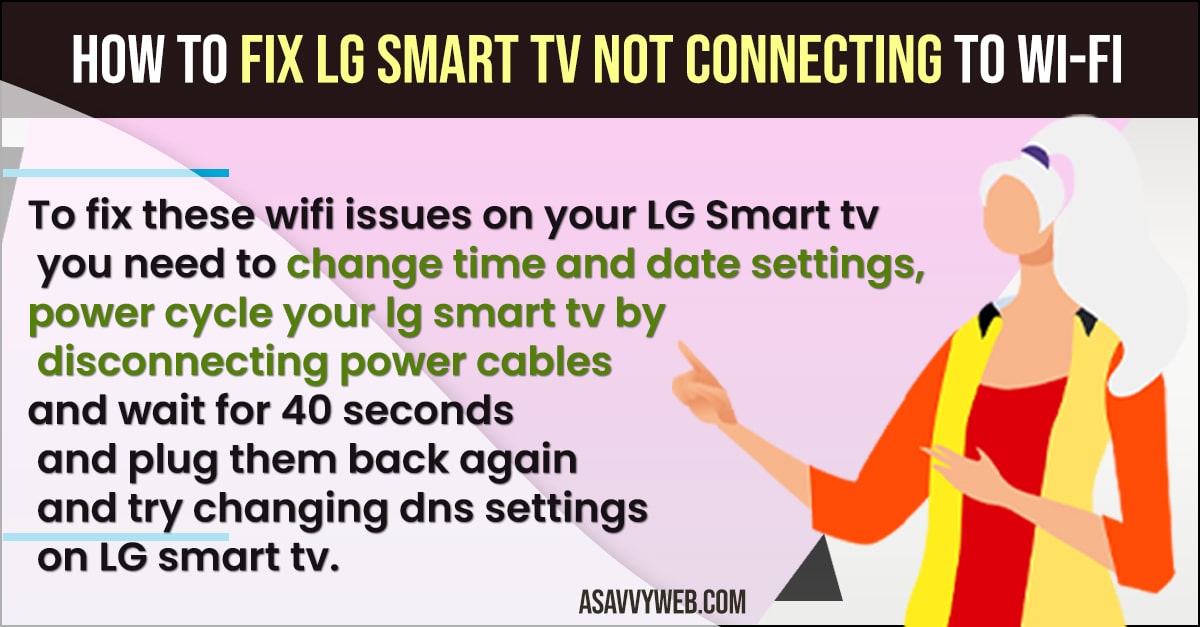
- Unplug the TV from the wall while it is ON.
- Press and hold the physical power button on the TV for 30 seconds.
Simple Wording: This “drains” the ghost electricity and clears the frozen network drivers from the TV’s internal memory.
Method 2: Automatic Time/Date Sync (SSL Fix)
- Go to Settings > General > System > Time & Date.
- Ensure Set Automatically is checked. If it’s off, the TV’s security handshake will fail.
Method 3: Manual DNS Override (The #1 Software Fix)
- Go to Settings > Network > Wi-Fi Connection > Advanced Settings.[1]
- Uncheck “Set Automatically” and change the DNS to 8.8.8.8 (Google) or 1.1.1.1 (Cloudflare).
Logic: This bypasses unstable ISP DNS servers that often cause the “Access Point” error.
Method 4: Disabling “Quick Start+” (Flush I/O Buffer)
- Go to Settings > General > Devices > TV Management > Quick Start+.
- Toggle this OFF and restart the TV.[2]
Why: Quick Start+ keeps the network card in a “sleep” state that often prevents a clean DHCP refresh.
Method 5: Forgetting and Re-Pairing the SSID
- In the WiFi menu, select your network name and click Forget.
- Re-enter your password manually.[3] This forces the router to issue a fresh DHCP lease.
Method 6: Switching to 2.4GHz Band (Frequency Stability)
If your router uses the same name for 2.4GHz and 5GHz, the LG TV may “bounce” between them, causing drops.
- Separate the bands in your router settings.
- Connect the TV specifically to the 2.4GHz signal, which penetrates walls more effectively.
Also Read:
1) Check Wifi Network Connected to LG Smart tv
2) Screen Mirror iPhone to LG Smart TV
3) How Do i Check LG Smart TV Internal Storage
4) LG TV Not Screen Mirroring on iPhone
5) Turn Off Pointer on Lg Magic TV Remote
Method 7: Disabling IPv6 Protocols
- Go to Advanced Network Settings and toggle IPv6 to OFF.
Logic: webOS sometimes struggles with IPv6 address allocation on older routers.
Method 8: The “Straighten the Ribbon” Hardware Fix (Advanced)
Warning: Only for users comfortable opening their TV.
- Remove the back panel screws.
- Locate the small WiFi module at the bottom of the TV.
- Unplug the ribbon cable, straighten any sharp folds, and secure it with electrical tape so it doesn’t crimp when the back panel is replaced.
Method 9: Resetting Network Settings (System-Level)
- Go to General > System > Reset to Initial Settings (or Network Reset if available on your model).[3]
Method 10: Using an Ethernet Bridge
If the WiFi hardware is permanently damaged, use a WiFi-to-Ethernet adapter (like a Travel Router) to plug into the TV’s LAN port.
Expert FAQ
Q: Why does my LG TV say “WiFi is turned off” when I didn’t turn it off?
A: This is a Hardware Initialization Failure. The TV tried to “wake up” the WiFi chip, but because of a cable crimp or power surge, the chip didn’t respond. The TV then displays “OFF” because it literally cannot see the hardware.
Q: Can I use a USB WiFi dongle on my LG TV?
A: No. LG TVs do not have the drivers for generic USB WiFi adapters. You must use the internal module or an Ethernet bridge.