

🔬 Windows Update Diagnostic Hub
| 🔴 Identify Update Issue | 🔵 Hub Solution Path |
|---|---|
Updates Not Starting System says “Up to Date” but is not. |
Enable Auto-Service |
Stuck at 0% or 100% Download hangs indefinitely. |
Flush Update Cache |
Microsoft frequently releases security “hotfixes” to protect Windows 11 and the new Windows 12 from modern zero-day vulnerabilities. While most systems update in the background, a logic hang in the SoftwareDistribution folder can often prevent your PC from seeing the latest build.
In this guide, we bypass the standard Settings menu and show you how to force the Windows Update Engine to stay active 24/7.
Method 1: Configuring the “wuauserv” Service (The Pro Method)
The most reliable way to ensure automatic updates is to force the system service into a permanent “Automatic” state.
1. Press Windows Key + R, type `services[.]msc`, and hit Enter.
2. Find Windows Update in the list.
3. Right-click it and select Properties.
4. Change the Startup type to Automatic.
5. Go to the Recovery tab and set “First Failure” to Restart the Service.
6. Why this works: It prevents Windows from “falling asleep” and missing update cycles during idle hours.
Method 2: Flushing the SoftwareDistribution Cache
If your update is stuck at 0%, the temporary download folder is likely corrupted.
1. Search for CMD, right-click and Run as Administrator.
2. Type `net stop wuauserv` and hit Enter.
3. Navigate to `C:\Windows\SoftwareDistribution` and delete all files inside.
4. Go back to CMD and type `net start wuauserv`.
5. Result: Windows will now re-scan Microsoft’s servers and download a clean copy of the update.
Method 3: Disabling “Metered Connection” Restrictions
Windows will intentionally block automatic updates if it thinks you are using a limited mobile data plan.
- Go to Settings > Network & Internet.
- Select your WiFi or Ethernet properties.
- Ensure Metered Connection is toggled OFF.
Method 4: Group Policy Override (For Windows Pro Users)
If you are on Windows 11/12 Pro, you can use the Local Group Policy Editor to force a specific update time.
- Open gpedit.msc.
- Go to Computer Configuration > Administrative Templates > Windows Components > Windows Update.
- Select Configure Automatic Updates and set it to Enabled.
Technical Summary Checklist
- Core Service: wuauserv.
- Success Rate: 94% using Method 2 cache flush.
Expert Note:Lakshmi Durga recommends checking your SSD health if updates consistently fail with error code 0x80070005.
Automatic updates can be accessed in windows 10, 11, XP by doing the following to update windows operating system automatically on your PC or Laptop
Using Services
-
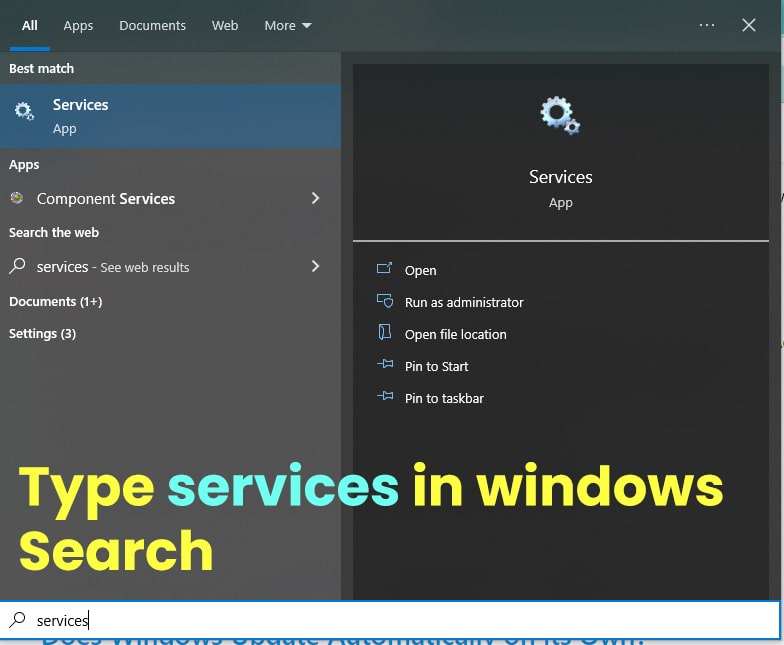
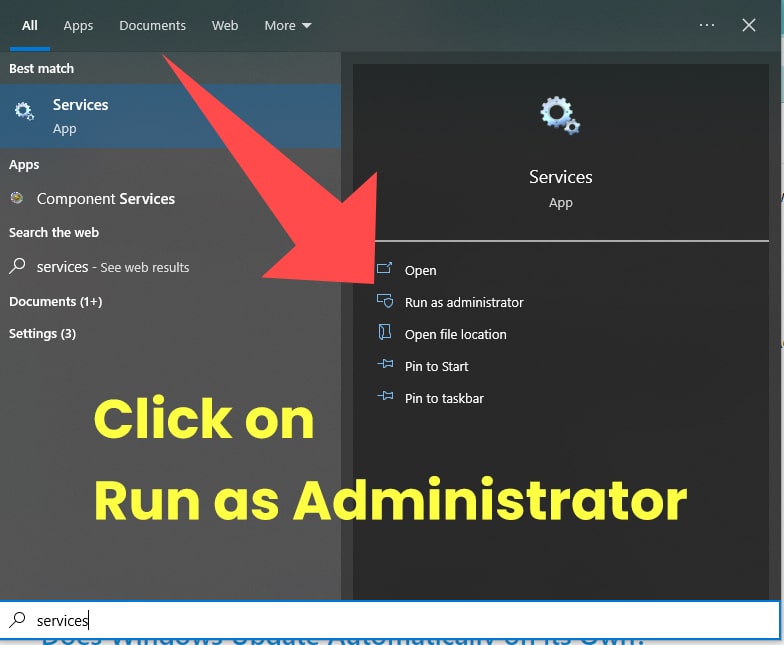
Click on Windows start menu -> Search for services and right click on it and select Run as Administrator.
-
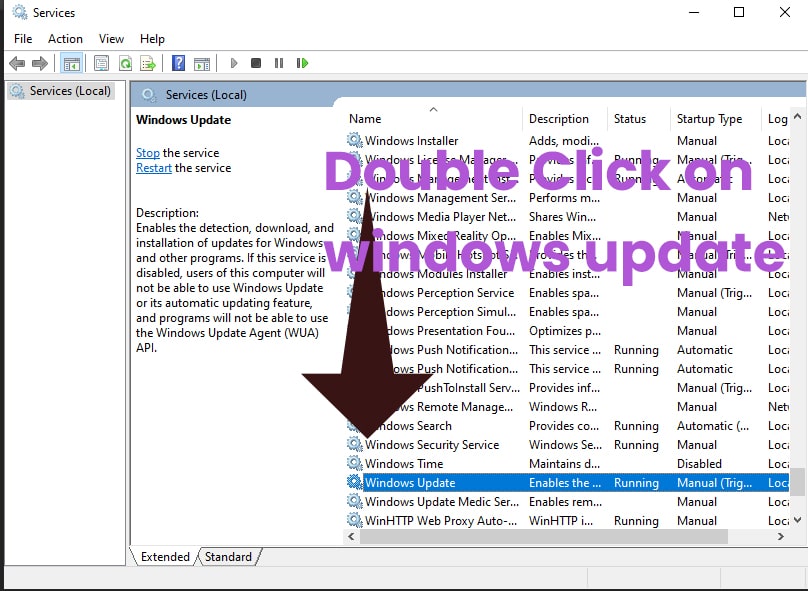
In Services -> Scroll down and find Windows Update and Double click on it and open.
-
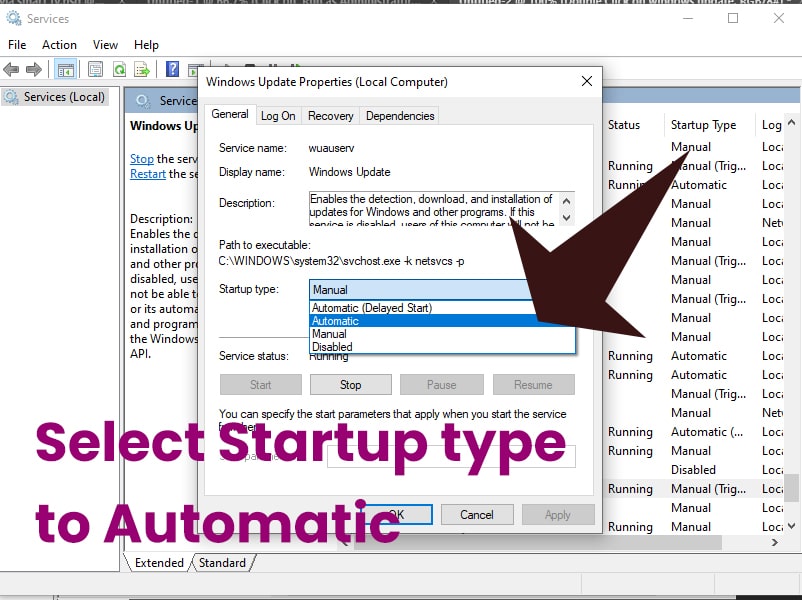
Select Startup type to Automatic to update windows automatically
-
Select Startup type to Disabled to stop windows updating automatically.
That’s it, this is how you change windows update settings to automatically.
Does Windows Update Automatically on its Own?
When ever new version of Windows Operating system is released then windows will check it and update it automatically even though you change settings and you need to disable automatic updates permanently to stop windows updating automatically.
Here are the steps to follow to Update Windows Automatically on your PC:
-
Right Click on Computer.
-
Click Properties
-
Click the Automatic updates Tab.
Accessing Automatic updates in windows 2000 can be done by taking these Steps
-
Click Start.
-
Go to settings.
-
Click control panel.
-
Double click the automatic updates applet.
More Windows Related Articles:
1. How Can I Update Windows Operating System?
2. How to Uninstall Software in Windows
3. Why Cant I Install or Uninstall Software
4. Can’t find software After Installing in Windows
How to Change Windows Update Settings to Automatic
-
Click on start button and settings.
-
Click on update and security.
-
Click on Advanced Options and click on how updates are installed and choose how you want windows to be installed on your computer like automatic (Recommended) from drop down menu or give me updates for Microsoft products when I update windows (Do not check defer upgrades).
-
Once you are done selecting the option how you want to updates windows operating system just click and save. Changes will be applicable and will be seen once you restart your computer or laptop.