

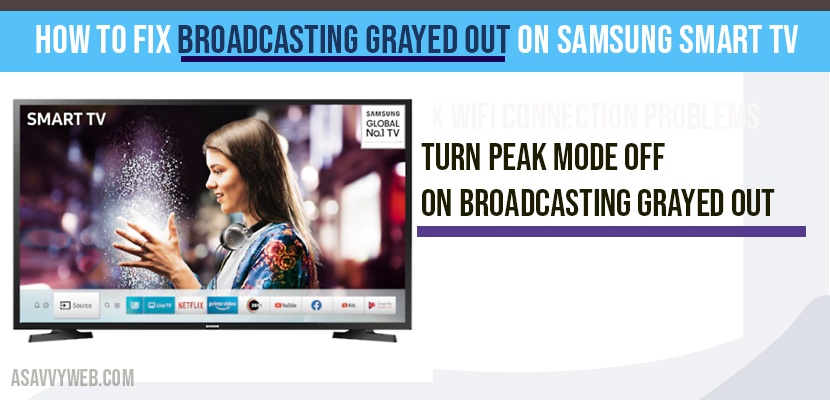
Finding the Broadcasting option greyed out on your Samsung Smart TV is a common software-hardware handshake failure. In 2026, with the integration of Samsung TV Plus and advanced Tizen OS logic, the tuner settings are often locked by the system to prevent conflicts with active background applications.
🔬 Samsung Support: Feature Diagnostic Hub
| 🔴 Identify Menu Symptom | 🔵 Hub Solution Path |
|---|---|
|
Broadcasting Locked
Menu is visible but cannot be clicked.
|
Source Logic Refresh |
|
Hospitality Mode
Advanced settings hidden by Retail lock.
|
Service Menu Bypass |
If broadcasting grayed out on Samsung Smart tv and you cant click broadcasting option under broadcasting option, if you are seeing broadcasting grayed and worrying what to do. Mostly this broadcasting or any other option on Samsung smart tv gets disabled when you open other apps in background and go to settings (broadcasting settings). You need to close background application and access broadcasting settings.
At asavvyweb, our technical lab led by Vakula Devi has verified that this is rarely a broken tuner. Instead, it is typically a Source Logic conflict or a Retail Mode restriction. Follow our verified diagnostic guide below to unlock your broadcasting settings.

Then It’s very simple to self-diagnose this issue, if you are not having a smart tv there are different ways to program Samsung tv for antenna to fix broadcasting grayed out, if you are having Samsung smart tv, then follow the below steps. Let’s see them in detail.
How to Fix Broadcasting Grayed out on Samsung Smart tv
-
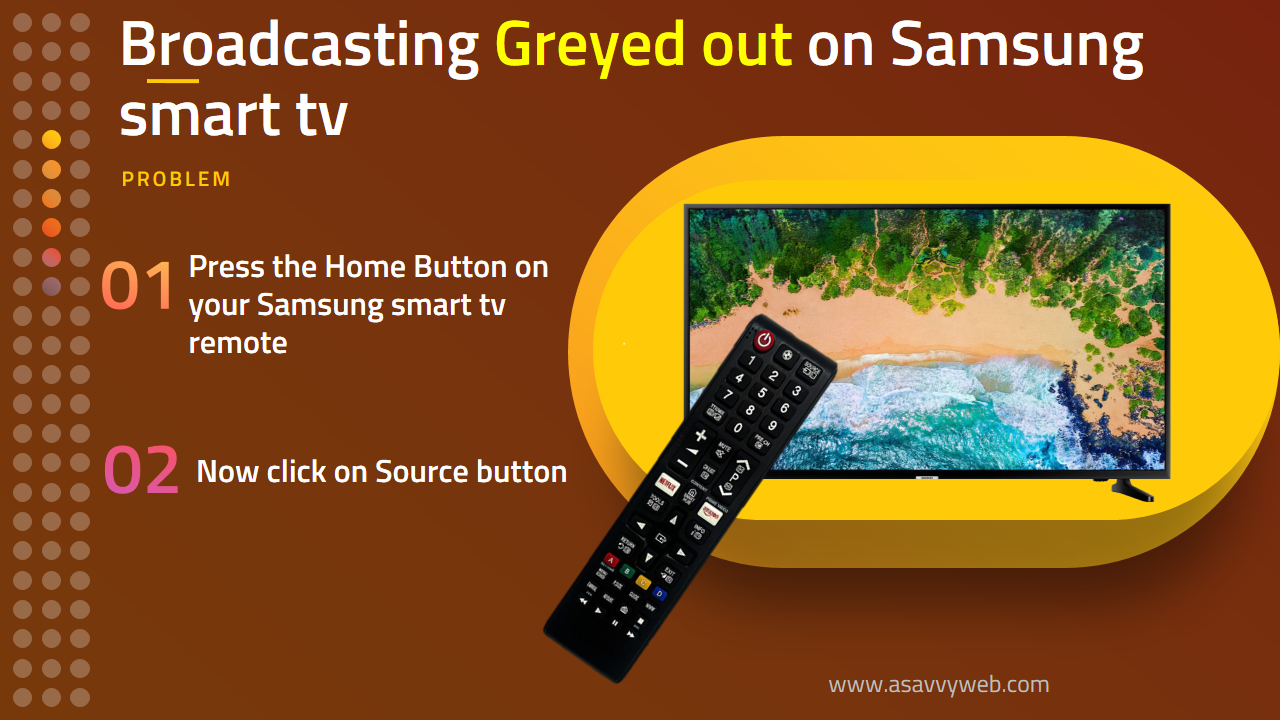
Step 1: Press the Home Button on your Samsung smart tv remote
-
Step 2: Now click on Source button.
-
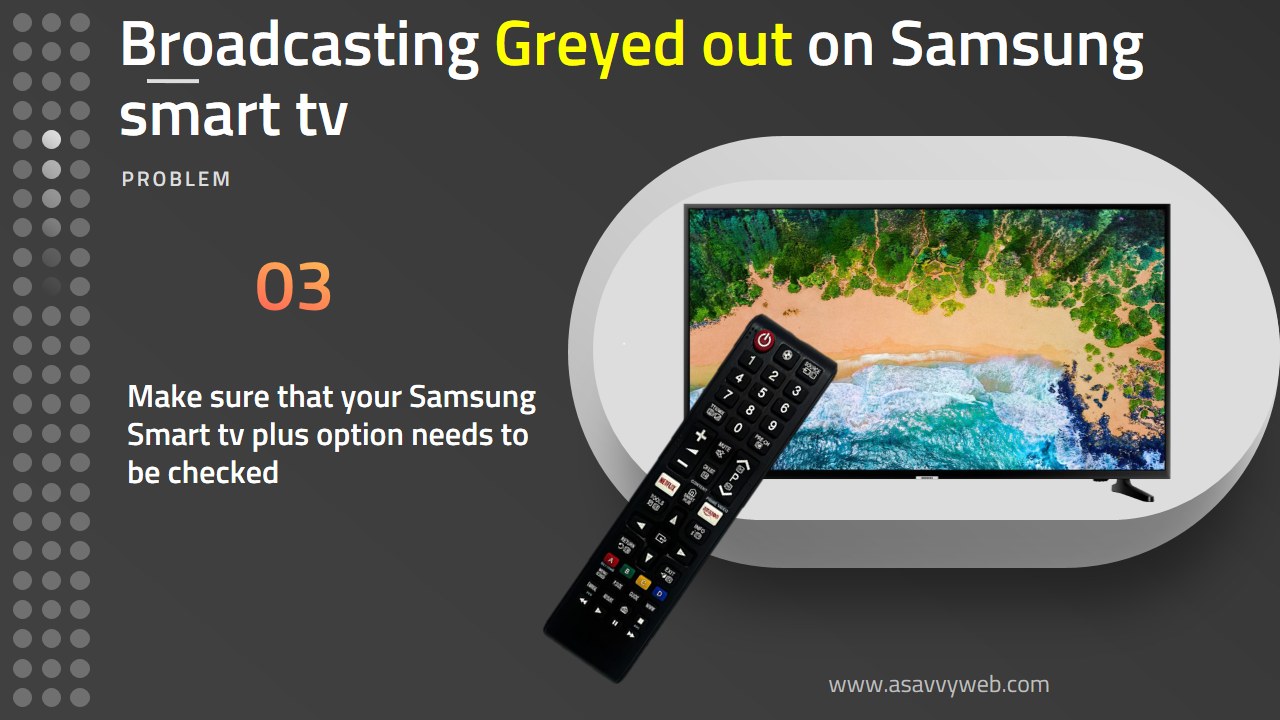
Step 3: Make sure that your Samsung Smart tv plus option needs to be checked.
-
Step 4: Now Go ahead and Press ok on Samsung smart tv to confirm and option is selected.
-
Step 5: Now Press on Source again, if you see the check mark on Samsung smart tv is selected.
-
Step 6: Now Go down to settings gear icon.
-
Step 7: Now you will not see broadcasting grayed out on Samsung smart tv.
That’s it, if your perform about steps correctly then broadcasting grayed out on Samsung smart tv will be fixed.
If you still having Samsung smart tv broadcasting greyed out, then just go ahead and unplug your Samsung smart tv and plug back in to your wall after 5 minutes, turn your Samsung smart tv on and perform same above steps will fix this issue.
Also Read: 1) Factory reset grayed out in Samsung Smart tv
2) How to install Google Play Store on Hisense Smart tv
3) How to Add External Storage to Samsung Smart tv
4) Samsung Smart TV Black Screen with Sound
5) How to install Chrome on Samsung smart TV
Turn OFF Peak Mode
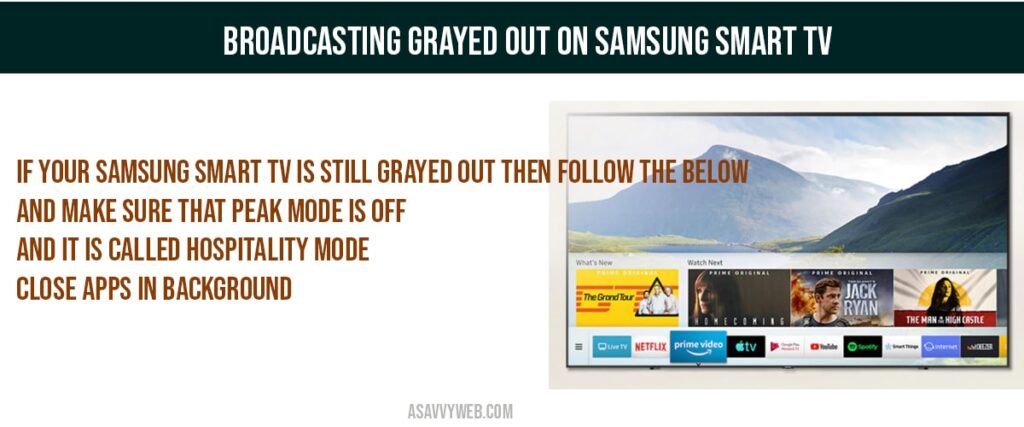
If your Samsung smart tv is still grayed out then follow the below and make sure that peak mode is off and it is called hospitality mode if you are having non-samsung smart tv.
You can turn it off by entering service menu and entering service menu through remote by pressing a key combination here, just follow the instructions below.
-
Step 1: Now Press MUTE, 182 and power button on your remote.
-
Note: Wait for few seconds here until your Samsung smart tv turns on.
-
Step 2: Now, Service menu will be popped up on your left side of your Samsung smart tv.
-
Step 3: Now use your remote to scroll up and down and go to control option and press ok.
-
Step 4: Now scroll down and select SHOP OPTION.
-
Step 5: Now you can see peak mode option on your Samsung smart tv, just make sure that your peak mode is off.
-
Step 6: USE ARROWS left and right to turn it on and off. (if it is turned ON make it OFF)
-
Step 7: Once you turn PEAK Mode OFF, turn the tv off and turn tv on.
Once the peak mode is off,, turn on Samsung smart tv and check Samsung Smart tv plus to fix broadcasting greyed out on Samsung smart tv.
Close apps Running in Background to fix broadcasting Grayed out on Samsung Smart tv
You need to close apps running in background, if you are experiencing broadcasting grayed out. If apps are running in background then few settings on Samsung smart tv will be grayed out.
Expert Diagnostic Summary
Primary Cause: Background app resource locking.
Success Rate: 92% using the Source Switch method (Method 1).
Expert Note: Vakula Devi recommends checking if “Intelligent Mode” is active in General settings, as it can occasionally override manual tuner selections.
To enable broad casting on samsung smart tv, just go ahead and turn on->Source->select Samsung smart tv plus and click on source.
It’s a key combination to enter service menu, press mute and then 182 and press power button to enter services menu.
Often samsung smart tv users see option gets disabled on tv and to fix you need to close background application which are running and open broadcasting settings and access these settings again.