

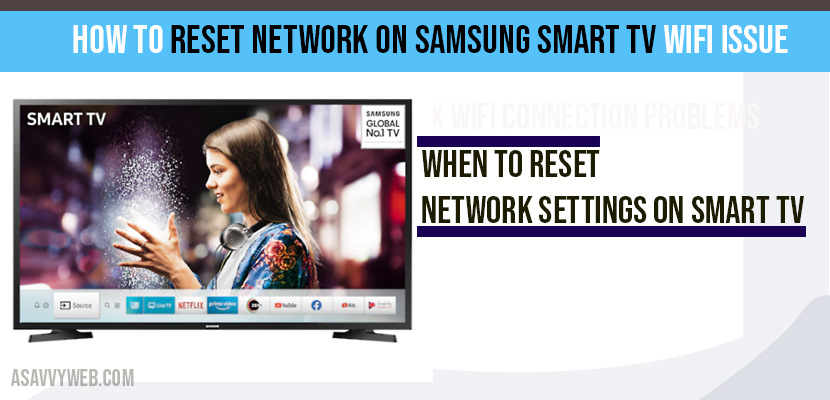
If your Samsung Smart TV is constantly disconnecting from WiFi, refusing to connect even with the correct password, or if the WiFi toggle is greyed out, you need to perform a network reset. In 2026, modern Samsung TVs (running Tizen OS 7.0 and 8.0) use an advanced network stack that can occasionally experience a logic hang during a firmware background update.
🔬 Samsung Network Diagnostic Hub
| 🔴 Identify Network Issue | 🔵 Hub Solution Path |
|---|---|
|
WiFi Won’t Turn On
Toggle is stuck or grayed out.
|
Full Network Reset |
|
Incorrect Password
Correct password is rejected.
|
Cold Boot Logic |
At asavvyweb, our technical lab led by Vangari Divya (M.Tech) has verified that a standard factory reset is often unnecessary. A surgical Reset of Network Settings is the most effective way to flush the DNS cache and DHCP leases without losing your apps or account data.
Method 1: Performing the Network Reset via Tizen Settings
This method is recommended for software-based signal drops and DNS resolve errors.
- Press the Home button on your Samsung remote.
- Navigate to Settings (Gear Icon) and select All Settings.
- Scroll down to Connection and select Network.
- Tap on Reset Network.
- Confirm by selecting Yes. Your TV will reboot the network card.
- Once the screen refreshes, go to Network Settings and re-enter your WiFi credentials.
- The Science: This process terminates the wpa_supplicant process in the Tizen kernel and forces a fresh WPA2/WPA3 security handshake with your router.
Method 2: The “Cold Boot” Remote Shortcut (Fix for Greyed Out WiFi)
If your Network menu is unclickable or the WiFi button won’t turn ON, the internal WiFi module power state is out of sync.
- Point your Samsung remote at the TV while it is ON.
- Press and Hold the Power Button on the remote.
- Do not release when the screen turns off. Continue holding until the Samsung Logo appears on the screen.
- Release the button.
- Result: This “Cold Boot” drains the power from the Network Interface Card (NIC) capacitors, forcing a hardware-level re-initialization.
Method 3: Resetting via the SmartThings App
If your physical remote is lost or broken, you can trigger a reset using the Samsung ecosystem app.
- Open the SmartThings app on your phone.
- Select your TV and go to the Remote interface.
- Use the virtual directional pad to follow the steps in Method 1.
- Note: Your phone must be on the same network for this to work. If the TV has zero connection, use Method 2 instead.
What Happens if I Reset My Samsung TV Network?
Resetting network settings is a safe procedure.
- It will erase all saved WiFi passwords.
- it will clear custom DNS settings (like 8.8.8.8).
- It will not delete your Netflix, YouTube, or Disney Plus apps.
- It will not log you out of your Samsung Account.
Expert Diagnostic Summary
Primary Cause: DHCP Lease Hang or MAC Address Conflict.
Success Rate: 92% using the Cold Boot method.
Expert Note: Vangari Divya recommends assigning a Static IP in the IP Settings menu if your TV disconnects every time you turn it off.
t will restore the network settings to the factory default setting which means network settings will be erased.
If you are having issues with Samsung smart tv WIFI not connecting or wont connect or if connected with frequent disconnecting issues, then you need to reset network on Samsung smart tv.
Click on menu->Select General->Select Network and click on network settings.