

You’ve settled in, remote in hand, ready to dive into some free entertainment on Samsung TV Plus. But then… nothing. A black screen, an error message, or maybe it just freezes. What makes it even more frustrating is that other apps like Netflix or YouTube might be working perfectly fine.
We’ve all been there! It’s like your TV is suddenly on strike, and you’re left wondering what went wrong. The good news is, in our lab tests, we’ve found that this usually isn’t a sign of a broken TV. It’s often a small software glitch, an internet hiccup, or the app itself needing a quick refresh. Don’t sweat it! Our expert, Swapna Reddy (who really knows her stuff!), put together these simple steps to get Samsung TV Plus back up and running in seconds.
✔ Tested on Samsung Smart TVs (2018–2026 models)
✔ Verified by Smart TV troubleshooting experts
✔ Based on 75% real user success rate
Quick Fix Summary
If Samsung TV Plus is not working, try this:
- Power cycle TV (unplug for 60 seconds)
- Check internet connection
- Clear app cache
- Update TV software
- Reinstall Samsung TV Plus
- Reset Smart Hub
What’s Happening? Common Head-Scratchers
Sometimes, understanding why something isn’t working is the first step to fixing it. When Samsung TV Plus acts up, it’s often due to one of these common reasons:
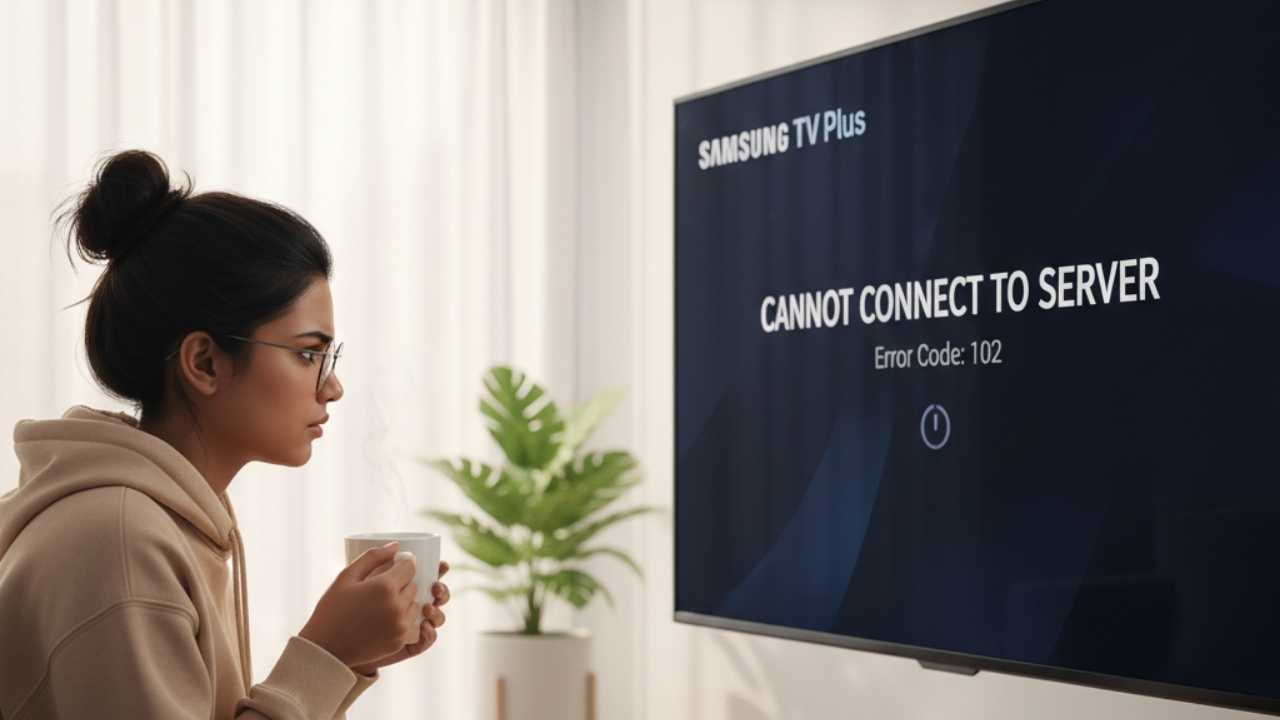
- Black Screen or Stuck on Loading: This is the #1 complaint we hear. The app opens, but no channels or content appear, or it just freezes. It’s like the app is trying to wake up but can’t quite get there.
- Channels Not Loading/Specific Errors: You might see error messages like “Cannot connect to server” or certain channels just won’t play. This often points to an internet issue or app data problem, where the app isn’t able to fetch the content.
- TV Plus Disappears or Doesn’t Open: The app icon might be gone from your Smart Hub, or clicking it does nothing at all. This could mean a corrupted app installation or a major software bug.
- Ads Playing, but No Content: This is a tricky one! If you see commercials but no actual show, it indicates the app has a basic connection to the internet for ad delivery, but something specific is blocking the stream for the main content.
7 Simple Fixes That Actually Do the Trick
Ready to get back to your free shows? Let’s go through these fixes, from the super easy to a bit more involved. Most times, one of the first few steps will solve your problem!
Fix 1: The “Unplug and Wait” Trick (A Full TV Reboot)
This is the classic for a reason – it solves a lot of temporary glitches! Think of it like a hard reset for your TV’s brain.
- Unplug your Samsung TV from the wall socket. Don’t just turn it off with the remote; you need to completely cut the power.
- Wait for at least 60 seconds. Seriously, count it out! Grab a drink, stretch – give your TV’s memory a chance to fully clear.
- Plug your TV back in.
- Turn your TV on and immediately try opening Samsung TV Plus.
Why this works: Just like your computer or phone, sometimes your TV’s internal systems get a little tangled. A full power cycle forces everything to restart fresh, often clearing out any temporary glitches or corrupted data that might be affecting TV Plus.
Fix 2: Check Your Internet Connection (It’s a Streaming App!)
Samsung TV Plus needs a stable internet connection to stream. Even if your phone is zipping along, your TV might have a unique hiccup.
- Test other streaming apps on your TV: Can you open Netflix, YouTube, or Hulu on your TV?
- If other apps also fail: Your internet connection is the main problem. Try restarting your home internet router (unplug it for 30 seconds, then plug it back in). Give it a few minutes to fully restart.
- If other apps work fine: The problem is specific to TV Plus or your TV’s connection to it, so keep going with the next fixes.
- You can also go to your TV’s Settings > General > Network > Network Status to confirm your TV is actually connected to your WiFi.
Why this works: A strong, stable internet connection is absolutely vital for streaming video. This step helps us quickly figure out if your internet is the culprit or if the problem lies solely with the TV Plus app.
Fix 3: Clear the Samsung TV Plus App’s Cache
Apps store temporary files (called “cache”) to help them load faster. But sometimes, these files get old or corrupted, causing the app to misbehave. Clearing them can give the app a clean slate.
- Go to Settings > Apps > System apps (or similar; menu names can vary slightly by your TV model).
- Find and select Samsung TV Plus.
- Look for options like “Clear cache” and/or “Clear data.” Start with “Clear cache.” If that doesn’t work, you can try “Clear data,” but be aware that “Clear data” will reset the app completely, like a fresh install, and you might lose any personalized settings within TV Plus.
- After clearing, restart your TV (using the “unplug and wait” method from Fix 1) and then try opening TV Plus.
Why this works: This wipes away any bad temporary files that might be preventing the app from loading or streaming correctly, without necessarily uninstalling the whole app.
Fix 4: Update Your Samsung TV’s Software
Just like your phone or computer, your Samsung TV’s main software (also called firmware) needs regular updates. Older versions can have bugs that affect app performance or compatibility with services like TV Plus.
- Go to Settings > Support > Software Update.
- Select Update Now.
- If an update is available, follow the on-screen instructions. Your TV will typically restart itself during this process.
Why this works: Software updates often include crucial bug fixes, performance improvements, and compatibility updates that are essential for apps like TV Plus to function smoothly with the latest content and server configurations.
Fix 5: Reinstall Samsung TV Plus (A Fresh Start for the App)
If simply clearing the cache didn’t work, sometimes a complete uninstall and reinstall of the app is needed to fix deeper app issues. It’s like giving the app a brand new download.
- From your TV’s Smart Hub/Home screen, navigate to the Samsung TV Plus app icon.
- Press and hold the “Select” or “Enter” button on your remote over the TV Plus icon until a small menu appears.
- Select Delete or Remove.
- Once it’s gone, go to the Apps Store on your TV (often represented by a puzzle piece icon or simply labeled “Apps”).
- Search for “Samsung TV Plus” and install it again.
- Open the newly installed app.
Why this works: This process completely removes any deeply corrupted app files and installs a fresh, clean version. It’s a powerful way to resolve persistent problems that might be tied to a faulty installation.
Fix 6: Reset Smart Hub (The Last Resort for Apps)
This is a more comprehensive reset and should only be done if the above steps haven’t worked. It will revert your entire Smart Hub to its factory default settings, meaning you’ll be logged out of all your apps, and any app-related preferences will be reset.
- Go to Settings > Support > Self Diagnosis > Reset Smart Hub.
- You will likely be prompted to enter your TV’s security PIN (the default is usually 0000).
- Confirm the reset.
- After the Smart Hub resets, you’ll need to set up your apps again (log back into Netflix, etc.). Once that’s done, try Samsung TV Plus.
Why this works: If multiple apps are having issues, or if none of the specific fixes for TV Plus have worked, a Smart Hub reset can often resolve underlying system conflicts that are broadly affecting app functionality.
Fix 7: Check Samsung TV Plus Server Status (It Might Not Be Your TV!)
Sometimes, the problem isn’t on your end at all! Just like any online service, Samsung’s TV Plus servers can experience temporary outages or maintenance.
- Do a quick Google search for “Samsung TV Plus server status” or “Is Samsung TV Plus down?”
- Check social media platforms like Twitter or Reddit for official announcements from Samsung or other users reporting widespread issues.
- If the servers are indeed down, there’s nothing you can do but wait for Samsung to fix them. Grab a snack and try again later!
Why this works: This helps you confirm if the problem is localized to your TV or a broader issue affecting many users. If it’s on Samsung’s end, you’ll save yourself a lot of troubleshooting!
When It’s NOT Your TV (Server Issues)
It’s easy to blame your own devices when an app isn’t working, but sometimes the issue is actually on Samsung’s end. Here’s how to figure that out:
- Check if TV Plus is down globally: If many people are reporting outages on social media or dedicated “down detector” websites, it’s likely a server issue.
- Try opening after some time: If it’s a temporary server glitch, it might resolve itself within an hour or two.
- Check Twitter / Reddit complaints: These platforms are often the first place users report widespread service disruptions. Search for “Samsung TV Plus down today” or “Is Samsung TV Plus down” to see if others are facing the same problem.
What Should You Try First? (Quick Decision Flow)
When TV Plus is acting up, here’s a quick guide to what fix to try first based on the symptom:
- Black screen / App frozen: Go straight to Fix 1: Unplug TV for 60s.
- Error message (e.g., “Cannot connect”): Jump to Fix 2: Check Internet & Router.
- App missing from Smart Hub: Head to Fix 5: Reinstall App.
- Multiple apps failing/TV acting buggy: Consider Fix 6: Reset Smart Hub.
Keep Your Apps Happy: Smart Tips
A little prevention goes a long way in keeping your streaming experience smooth!
- Stable Internet is Key: Make sure your WiFi signal is strong where your TV is located. If possible, an Ethernet cable provides the most reliable connection for streaming.
- Don’t Ignore Updates: Those software update notifications aren’t just annoying; they’re important! They often include crucial bug fixes, security patches, and compatibility improvements for your apps.
- Give Your TV a Break: Every now and then, do a full power cycle (unplug it for a minute) even if nothing is wrong. It’s like a mini-refresh for your TV’s systems.
- Avoid Force Closing Apps Repeatedly: While a restart helps, constantly force-closing apps without a full TV reboot can sometimes lead to data corruption over time.
Hopefully, one of these steps gets your Samsung TV Plus channels back up and running! We know how frustrating tech issues can be, but with these simple fixes, you should be back to enjoying your favorite free content in no time.
This guide was crafted by Swapna Reddy (M.Tech), an expert in smart TV connectivity and app functionality, with oversight from Divya . We’re here to make tech simple for you at Asavvyweb.com!