

🔬 Samsung System Recovery Hub
| 🔴 Identify System Error | 🔵 Hub Solution Path |
|---|---|
|
Menu is Locked
Reset button is greyed out.
|
Bypass Menu Lock |
|
Remote is Missing
Using physical TV buttons.
|
Manual Hardware Reset |
|
Stuck on Logo
TV keeps restarting in a loop.
|
Fix Boot Loop |
- Step 1: The “Soft Reset” (Smart Hub Refresh)
- How to Factory Reset Samsung Smart tv With Remote
- Troubleshooting: Why is the Reset Button “Greyed Out” or Not Available?
- Fixing the ‘Greyed Out’ Menu Error (Tizen OS Bug)
- Complete System Restore: With or Without a Remote
- Emergency Fix: TV Stuck on Logo or Restarting in a Loop
- Solutions to fix Samsung smart tv Stuck On Logo
- Samsung smart tv restarting on its own Reboots Continuously
- Factory Reset Using Remote Key Combination
- When to Factory reset Samsung smart tv?
- What Happens if I factory reset Samsung smart tv?
If you are facing issues with your Samsung smart tv like, restarting on its own, Netflix apps not working or any issue with the Display, then you need to reset your device to fix errors and get it back to normal as unboxed (New one) and get rid of issues with Samsung tv.
Factory resetting erases all data and wipe all installed apps and restores to its default settings.
Step 1: The “Soft Reset” (Smart Hub Refresh)
If the Samsung Smart Hub application is unresponsive or unable to launch on your TV, you can resolve the issue by resetting the Smart Hub. This action will restore Smart Hub functionality.
Before doing a full wipe that deletes your data, try resetting just the apps. Please be aware that resetting the Smart Hub will delete all installed applications, application data, and user data, requiring you to reinstall applications and complete the Smart Hub setup process anew. The following provides a detailed guide .
Step 1: Press home button on your remote
Step 2: Open settings
Step 3: Scroll down and press ok on Support
Step 4: Press ok on Self Diagnosis.
Step 5: Now, in Self Diagnosis -> Reset Smart hub and press ok.
Step 6: Now, you will be prompted to enter 4 digit password to reset smart hub.
Step 7: Enter 4 digit passcode 0000 or if you have set any 4 digit password enter it.
Step 8: It will start resetting smart hub and it takes 1 to 2 minutes.
If you are facing issues or problem with apps, then you don’t need to reset it, you need to delete app or uninstall apps to fix issues with apps.
How to Factory Reset Samsung Smart tv With Remote
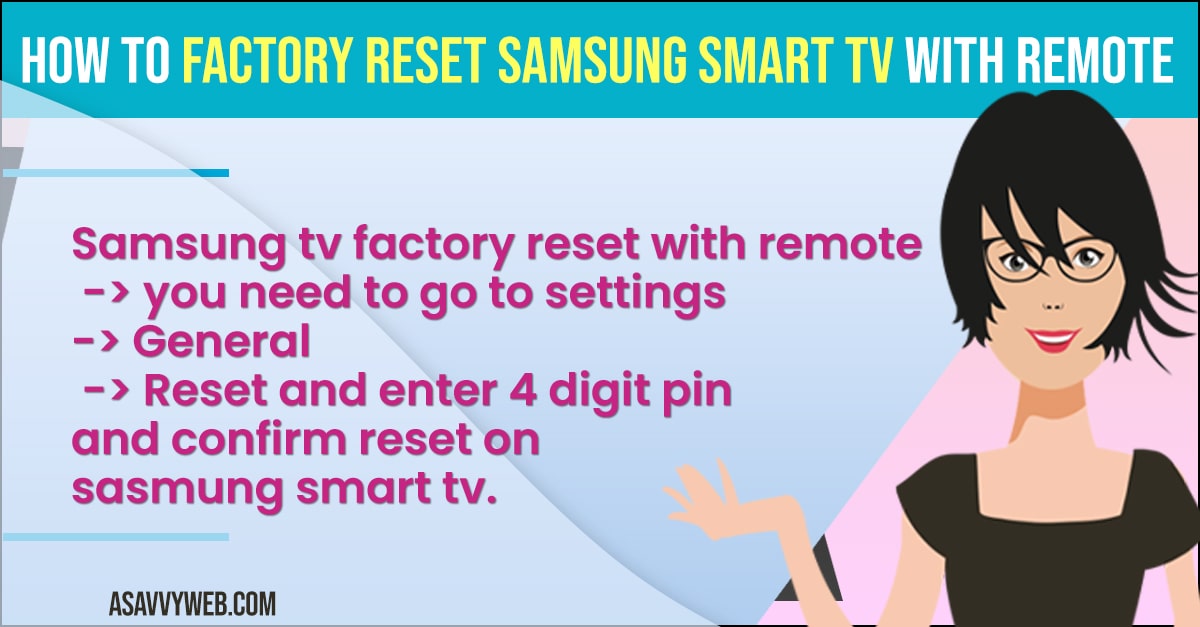
Step 1: Click on Source button on your Samsung tv remote.
Step 2: Using left arrow button move left and click on Settings gear icon.
Step 3: navigate using remote up and down and go to General and press ok.
Step 4: In General->Reset.
Step 5: Once you click on reset, it will ask you for 4 digit pin.
Step 6: Enter your 4 digit pin
Note: By default it is 0000, if you haven’t set any pin on your Samsung tv then enter 0000 and press ok.
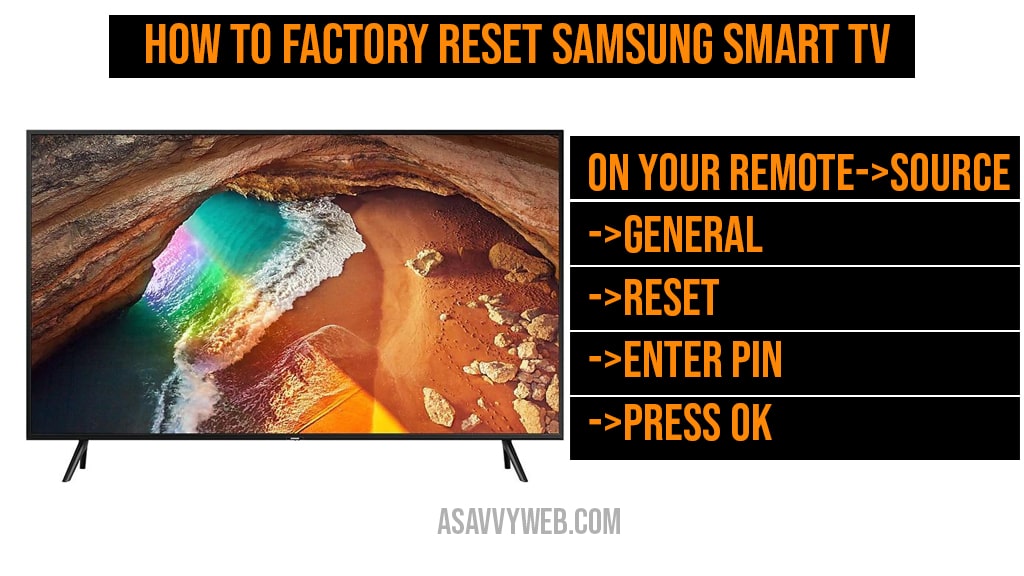
Step 7: Press ok and it will start factory resetting process and it will reboot automatically and turns on your tv.
Troubleshooting: Why is the Reset Button “Greyed Out” or Not Available?
If you have any other application running or kept open on your tv and then if you go to reset smart hub on Samsung tv, then reset smart hub option will be grayed out and you need to close all apps (like Netflix) and check if the TV is in “Store/Retail Mode and then reset smart hub option will be enabled.
Turn off and Turn on Samsung tv
Grab your samsung tv remote and press the power button and simply turn off samsung tv and wait for 30 seconds and then turn on samsung tv and reset smart hub option will be enabled.
You can also remove the power cable or press the power button on samsung tv panel and restart your samsung tv and then reset samsung hub by going to reset smart hub settings.
Close All Open Applications Running in Background
When Reset smart hub button option is not enabled then there is an application (app) running on your samsung tv and you cant reset smart hub when application is running in background and you need to close it and just check applications in background and close application and then go to reset smart hub option and reset smart hub.
Power Reset Samsung tv
Step 1: Turn on your Samsung tv and then unplug main power cable from the wall socket completely.
Step 2: Now, wait for 60 seconds and then plug Samsung tv power cable back to the wall socket and then turn tv on using the power button and wait for it to completely reboot.
Step 3: Now, go to settings -> All Settings -> Support -> Self Diagnosis and Select Reset Smart hub option and enter pin and reset smart hub.
Fixing the ‘Greyed Out’ Menu Error (Tizen OS Bug)
If you are facing issues with factory reset or reset option is disabled (unavailable) or greyed out and wondering how do I reset?
You need to perform few more steps to get back your factor reset option working as below.
Step 1: Press source on your remote
Step 2: Click on tv and press enter (make sure you are on tv)
Step 3: Click on Source again->settings
Step 4: Now go to general->Reset (now option will be enabled)
Step 5: Click on reset to perform factory reset.
Complete System Restore: With or Without a Remote
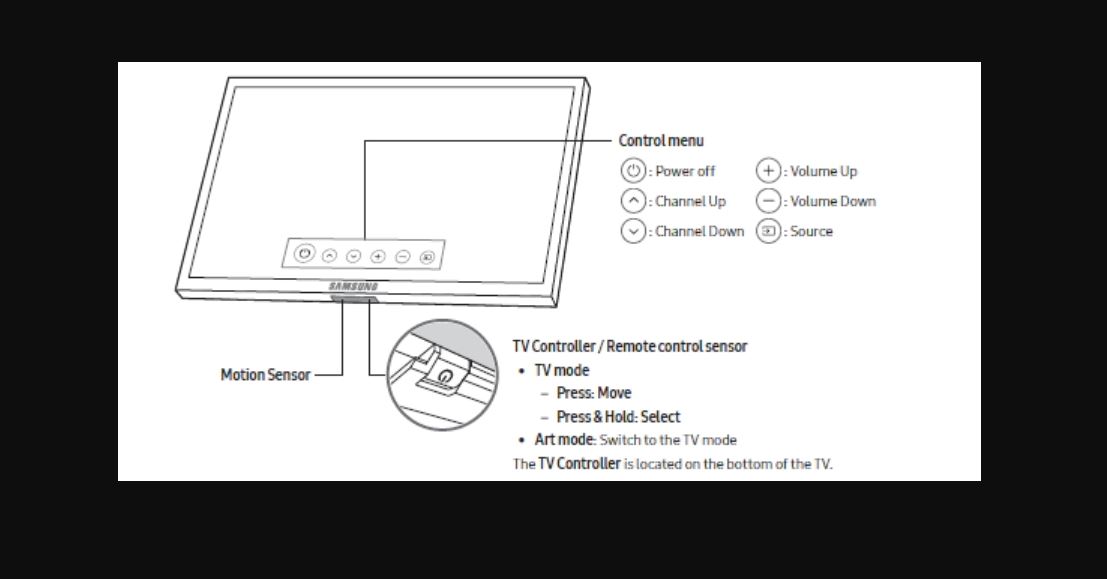
If by any change you have damaged your remote or your remote is not responding then you can factory reset the unit by using button on your device.
Use the control buttons or use tv controller / remote control sensor buttons and you can factory reset by using channel up, volume
up, channel down, volume down, and source symbol on front of your Samsung smart
tv and use on screen instructions by pressing arrow keys to factory reset the tizen set.
Emergency Fix: TV Stuck on Logo or Restarting in a Loop
When you turn on your samsung tv and its stuck on logo and doesn’t start up or doesn’t boot and still keeps on showing up tv logo again and again even though you turn on off and still and the main reasons for this is due to firmware update or any mother board issues then your Samsung smart tv stuck on logo appears.
Power rest by unplug and plug back power cords
Step 1: Unplug the power cords of TV from the unit
Step 2: Press and hold power not on the remote (on your device)
Step 3: After 30 seconds release the power button
Step 4: Wait for 10 minutes and plug the tv back
Step 5: Now press and hold power button on Samsung tv and wait until it turns on.
Step 6: Let go once your tv turns on
Update firmware
Due to firmware update which is unstable software version your tv may stuck on logo by upgrading firmware software will fix this issue of Samsung tv stuck on logo issue.
By using USB drive and download latest version of Samsung firmware and download it to your usb stick and connect the USB stick on back of your smart tv and update firmware. After updating firmware it will fix issue of your device stuck on logo.
Causes of Samsung smart tv stuck on logo issue
Due to firmware update malfunction or unstable version installed, software glitches, Motherboard issue of smart tv.
Solutions to fix Samsung smart tv Stuck On Logo
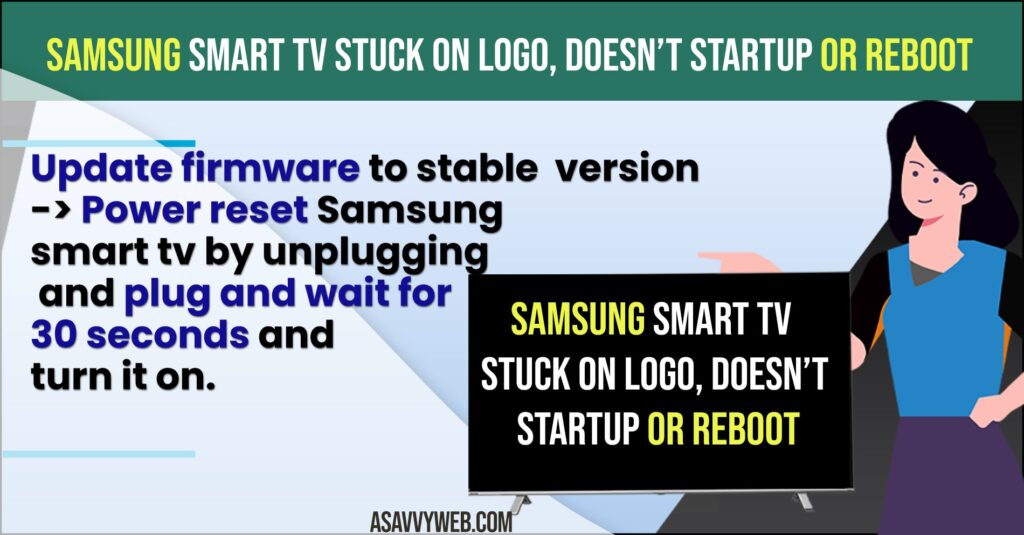
Update firmware to stable version
Power reset it by unplugging and plug and wait for 30 seconds and turn it on.
Consult a technician or the tizen(samsung) tv support and fix issue with motherboard.
Why is my Samsung smart tv stuck on Logo when turned on?
Due to unstable firmware update – update firmware to latest version to fix this issue, power reset by unplug (press and hold for 30 seconds) and plug back and perform power reset and issue with motherboard as well plays a role in here.
How to update firmware on Samsung Smart tv?
Download the latest version of firmware according to your tv model number on to your usb stick and insert usb stick on your smart tv and update firmware.
Where can I download Samsung smart tv firmware to update?
Go to official website of Samsung smart tv and enter your device serial no and download firmware.
Does power reset helps to fix tv stuck on logo?
Mostly this will fix the issue of tv stuck on logo, If you still facing issue after power reset then firmware update will fix the issue and fixing mother board issue also.
Samsung smart tv restarting on its own Reboots Continuously
Power Reset
Step 1: Turn on samsung tv and Unplug power cable from wall socket
Step 2: Wait for 60 seconds. and then plug back power cable and turn on Samsung tv and reboot your Samsung tv and if there are any software or technical issues then samsung tv keeps restarting issue will be fixed.
Factory Reset Using Remote Key Combination
Step 1: Power off the tv and wait for 5 seconds
Step 2: Now on your remote press this key combination to enter into service menu.
Step 3: Grab your remote and press this Key combination: Press info button then menu and mute button and power button to enter in to service menu.
Step 4: Once you enter service menu, click on options.
Step 5: Now click ok on Factory reset
Step 6: Now your device will be turned on and will be restarting on its own.
Note: wait for few seconds until your tv turns on.
Step 7: Once it gets turned on, Click on setup and setup your smart tv and follow your onscreen instruction on your smart tv.
Factory resetting is easy fix to get rid of restarting your your tv on its own which is a rebooting issue. If you still face problem then call Samsung customer care support.
Why Samsung Smart tv Restarting on its own?
This causes due to the firmware software update issue or motherboard issue, software needs to be updated and when you factory reset your Samsung tv it gets updated.
When to Factory reset Samsung smart tv?
If your tv is not working any more or facing serious issues and none of the solutions are working to resoliving issues, then you need to perform a factory reset to get back your Samsung tv.
Once you factory reset your the unit then it will be same as you bought unboxed acts like a new smart tv.
Other Samsung Smart tv Issues:
1- How to Install Google Play Store on Samsung Smart TV
2- Samsung Smart Tv Not Connecting to WIFI internet
3- How to Connect Samsung smart tv to Bluetooth speaker
4- How to Change Region on Samsung Smart Tv Series 7
5- How to Access Service Menu Samsung Smart TV
6- Samsung smart tv restarting on its own
What Happens if I factory reset Samsung smart tv?
It will wipe out all your data and installed application and everything like network settings, IP address and everything and user data etc and will act as new device that you just bought from show room unboxed.
How do I reset my Samsung Smart tv?
On your remote->Source->General->Reset->Enter Pin->Press ok to perform factory reset.
Can I reset Samsung smart tv without using remote?
Yes! By using control buttons on front or back of your tv depending upon your device model, you can reset it without using remote.
What Happens if I reset Samsung smart tv?
It will wipe all data (apps and user data and etc) and your tv will be like new tv bought from showroom with installed on it.
4 digit password to perform factory reset?
To perform a factory reset, you need to enter you 4 digit pin, if you haven’t set any pin then your default pin will be 0000, enter 4 digit pin to reset it.