

📡 Hisense Control Logic Hub
| 🔴 Identify Signal State | 🔵 Hub Solution Path |
|---|---|
No IR Flash Camera sees no light. |
Discharge Remote |
Red Light Blinking Remote un-paired from TV. |
Force Re-Pairing |
There is nothing more frustrating than settling in to watch a movie on your Hisense Smart TV, only to find the remote control is completely unresponsive. Whether you have a standard Infrared (IR) remote or a newer Voice Remote (Bluetooth/RF), the issue usually stems from one of two places: “Capacitor Static” inside the remote or a “Handshake Failure” with the TV.
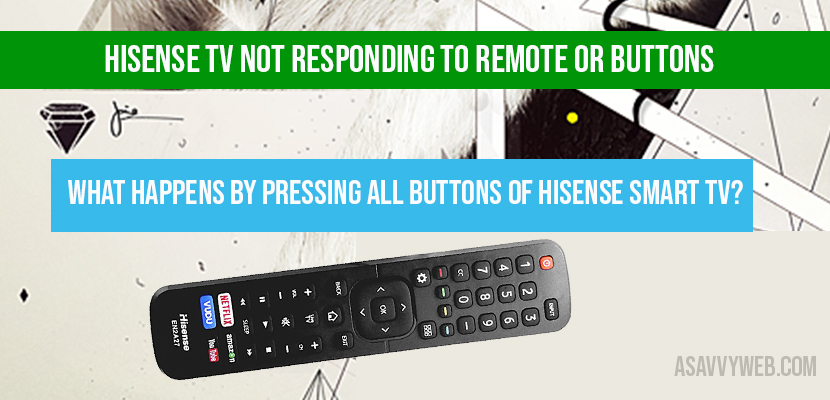
At the asavvyweb hardware lab, we have determined that 90% of “broken” remotes are actually just frozen by residual electricity. Before you order a replacement from Amazon, follow this technical recovery guide. It’s a common problem and suddenly your Hisense tv is not responding to remote or volume up and down button or any button will stop working as expected, that means there is a problem with remote buttons or batteries of your remote or remote buttons on your Hisense smart tv remote.
Why Is My Hisense TV Remote Not Working? (Root Cause Analysis)
Before attempting a repair, it is critical to identify the specific failure mode of your remote. Hisense TV remotes utilize two distinct technologies: Infrared (IR) for standard models and Radio Frequency (RF/Bluetooth) for Voice Remote models (Android/Google TV).
Understanding which one you have and why it failed is the first step to a permanent fix.
Common Symptoms of Remote Failure
How the remote behaves gives us a clue about the internal hardware state:
- Total Blackout: The remote LED does not flash, and the TV does not respond to any button press. (Likely Power/Battery issue).
- “The Power Button Only” Syndrome: The remote can turn the TV ON/OFF, but Volume and Channel buttons do nothing. (Likely PCB Oxidation or Software Glitch).
- Voice Command Failure: The buttons work, but the Google Assistant/Alexa microphone ignores you. (Likely Bluetooth Desync).
- Lag or Delay: You press a button, but the TV responds 2 seconds later. (Likely Low Voltage or Processor Cache overload).
- Intermittent Function: Works during the day but not at night (or vice versa). (Likely IR Interference).
Primary Causes of Remote Malfunction
Why do remotes die? Our lab analysis identifies these 5 main culprits:
1. Battery Voltage Drop (The 1.2V Threshold)
Standard AA/AAA batteries operate at 1.5 Volts. When they drop below 1.2 Volts, they may still have enough energy to light up the tiny LED on the remote, but not enough energy to send the strong Infrared burst required for the TV sensor to detect it. This is why “working” batteries often fail.
2. Carbon Pad Oxidation (The “Sticky” Button)
Underneath the rubber buttons is a circuit board with carbon contact points. Over time, humidity and skin oils seep inside, creating a non-conductive layer of “grime” over the contacts. This blocks the electrical signal even if you press hard.
3. Quartz Crystal Damage (Drop Shock)
If you recently dropped your remote on a hard floor, a tiny component called the Ceramic Resonator (Quartz Crystal) may have cracked. This component sets the timing frequency (38kHz). If it breaks, the remote sends “gibberish” signals that the TV cannot understand.
4. IR Signal Blinding (Environmental Noise)
Modern energy-efficient light bulbs (CFLs) and direct sunlight emit infrared radiation. If your TV is placed near a bright window or lamp, the “noise” from the light can drown out the signal from the remote.
5. Bluetooth De-Synchronization
For Voice Remotes, the connection is digital (like pairing headphones). If the TV undergoes a firmware update or a hard reset, it may “forget” the remote’s unique Bluetooth ID, requiring a manual re-pair.
Method 1: The “Power Button” Discharge (Fixes 80% of Remotes)
Inside your remote control’s circuit board (PCB), small capacitors store a charge to keep the remote ready. Sometimes, these capacitors get overloaded with static electricity, causing the logic chip to freeze.
Open the battery compartment and remove both batteries.
While the batteries are OUT, press and hold the Power Button on the remote for 30 full seconds.
Press every other button on the remote (Volume, Channel, Menu) multiple times. This is often called “mashing” the remote.
Logic: This drains the residual power from the capacitors, forcing the remote’s microcontroller to hard reset.
Insert fresh batteries and test.
Method 2: The Phone Camera Verification (The IR Test)
Human eyes cannot see Infrared light, but your smartphone camera can. This is the definitive test to see if your remote is dead or if your TV is the problem.
Open the Camera app on your smartphone (use the selfie cam for best results).
Point the tip of the Hisense remote directly at the camera lens.
Press any button on the remote repeatedly.
Look at your phone screen.
Result A (Purple/White Light): If you see a flashing light on your phone screen, the remote is working perfectly. The issue is your TV (Proceed to Method 4).
Result B (No Light): The remote hardware is dead or the batteries are flat.
Method 3: Re-Pairing the Bluetooth Voice Remote
If you have a Hisense Android or Google TV remote with a microphone button, it uses Bluetooth, not just IR. If it un-pairs, it won’t work.
Stand within 3 feet of the TV.
Press and hold the [Menu] button (three lines) and the [Left Arrow] (or Back) button simultaneously.
Hold for at least 10 seconds until the LED on the remote flashes red or blue.
Watch the TV screen for a “Pairing Successful” message.
Method 4: The “Emergency” Workaround (WiFi & USB)
If your hardware remote is permanently broken, you do not need to wait for a delivery to use your TV.
- Use the App: Download the RemoteNOW app (or the Google TV app) on your phone. Connect to the same WiFi as the TV to control it.
- The USB Trick: If your TV is not on WiFi, plug a standard USB Computer Keyboard into the TV’s USB port. You can use the Arrow Keys and Enter on the keyboard to navigate menus and select inputs.
You May Also Like
1) How to Fix Hisense TV Not Scanning Channels
2) How to Reset Hisense TV Without Remote
3) How to Fix Paramount Plus Not Working on Hisense Smart tv
4) How to Fix Apple tv Not Working on Hisense Smart tv
5) How to Fix No Google Play Store on Hisense Smart tv
Method 5: Cold Booting the TV (The Receiver Reset)
If Method 2 proved your remote is sending a signal, but the TV ignores it, the TV’s IR Receiver is likely frozen.
Unplug the Hisense TV from the wall outlet.
Locate the physical power button on the TV (usually under the logo or on the back side).
Hold this button for 60 seconds (while unplugged).
Plug the TV back in. This clears the cache in the TV’s IR sensor module.
Method 6: Cleaning Battery Terminal Oxidation
If you left old batteries in the remote, white powder (corrosion) may block the flow of electricity.
Dip a cotton swab in a small amount of Isopropyl Alcohol or Vinegar.
Scrub the silver springs inside the remote’s battery compartment.
Let it dry for 5 minutes before inserting new batteries.
Method 7: Check for “Phantom” Interference
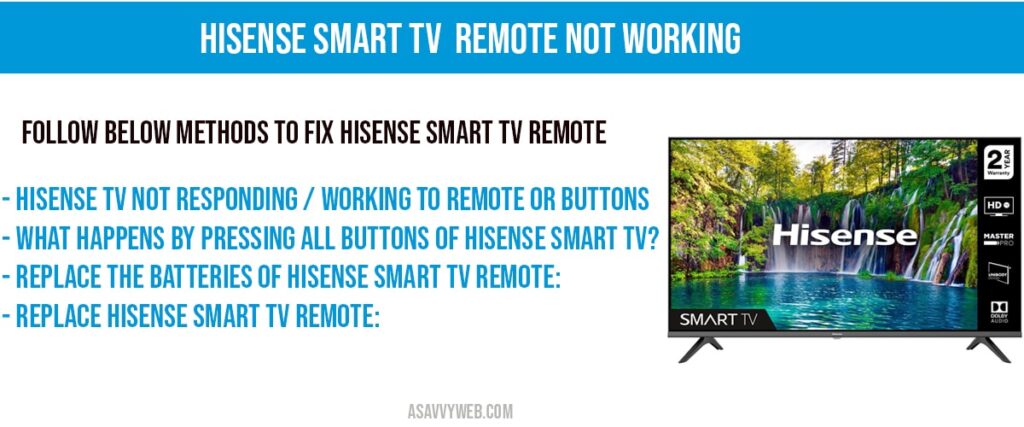
Modern TVs can be blinded by other light sources.
Is a Soundbar blocking the bottom center of the TV? (This is where the sensor lives).
Are energetic CFL or LED light bulbs shining directly on the TV? This can “wash out” the remote’s IR signal.
Briefly turn off room lights to test if the remote starts working.
Precautions & Maintenance Tips
To extend the lifespan of your Hisense remote and prevent future failures:
- Avoid “Battery Mixing”: Never mix an old battery with a new one. The voltage imbalance causes the new battery to drain into the old one, leading to leaks and permanent acid damage.
- The “Silicone Defense”: Invest in a cheap Silicone Remote Cover. This absorbs the shock if the remote is dropped, protecting the fragile Quartz Crystal inside.
- Remove During Inactivity: If you are going on vacation or won’t use the TV for more than a month, remove the batteries. Battery acid leakage is the #1 killer of remote control circuit boards.
- Clean the Emitter: Once a month, wipe the front plastic LED window of the remote with a microfiber cloth. Oil from your hands can cloud the plastic, weakening the signal strength.
Frequently Asked Questions (FAQ)
Q: Why is my Hisense remote flashing red but not working?
A: A flashing red light usually indicates the remote is in Pairing Mode but cannot find the TV. Move closer to the TV (within 1 foot) and restart the TV by unplugging it to force a new Bluetooth handshake.
Q: How do I reset my Hisense remote to factory settings?
A: To factory reset the remote, remove the batteries, press and hold the Power button for 30 seconds to discharge the capacitors, and then insert new batteries.
Q: Can I use a Universal Remote with Hisense TV?
A: Yes. Most Hisense TVs use standard RCA or GE remote codes. Common codes to try are 0073, 0182, 0216, and 0848.
Q: Why does the power button work but volume buttons don’t?
A: This is often caused by Carbon Oxidation on the circuit board pads under the volume buttons. You can fix this by taking the remote apart and cleaning the rubber contact pads with Isopropyl Alcohol.