

🔬 System Integrity Diagnostic Hub
| 🔴 Identify Failure Type | 🔵 Hub Solution Path |
|---|---|
|
Blue Screen (BSOD)
System crashes with a Stop Code.
|
Kernel Debug Fix |
|
Application Hangs
Apps freeze or refuse to launch.
|
Registry Repair |
|
Thermal Failure
Computer shuts down when hot.
|
Hardware Check |
A computer system failure is more than just an inconvenience; for many users, it represents a complete loss of productivity and critical data. Whether your PC refuses to boot or your applications crash intermittently, understanding the underlying cause is the first step toward a permanent repair.
At asavvyweb, our technical lab led by Swapna Reddy (B.Tech) and Vangari Divya (M.Tech) has identified that modern system failures are increasingly tied to Software-Hardware Handshake conflicts rather than simple part breakages. Below are the 7 most common causes analyzed for the 2026 hardware landscape.
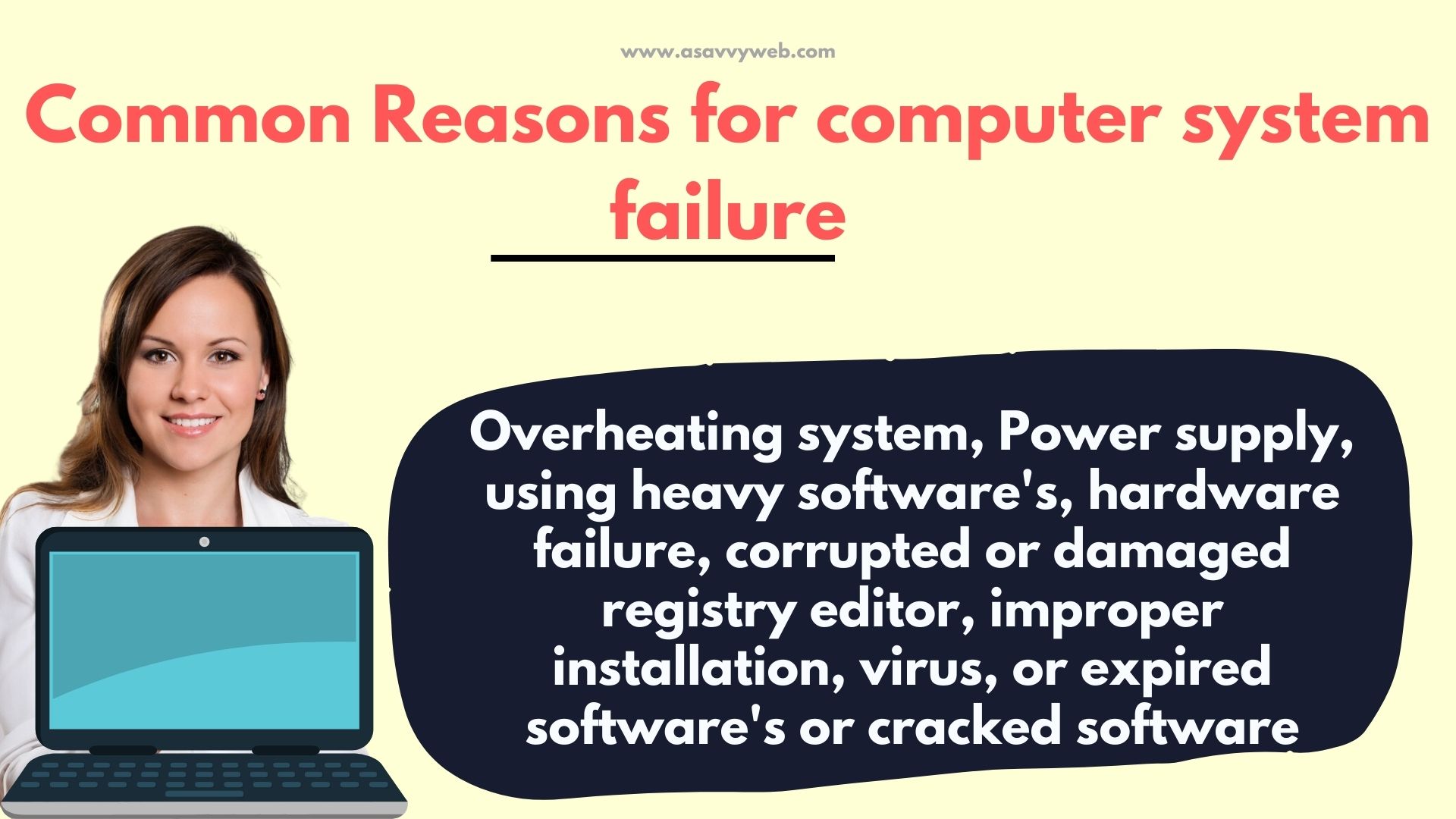
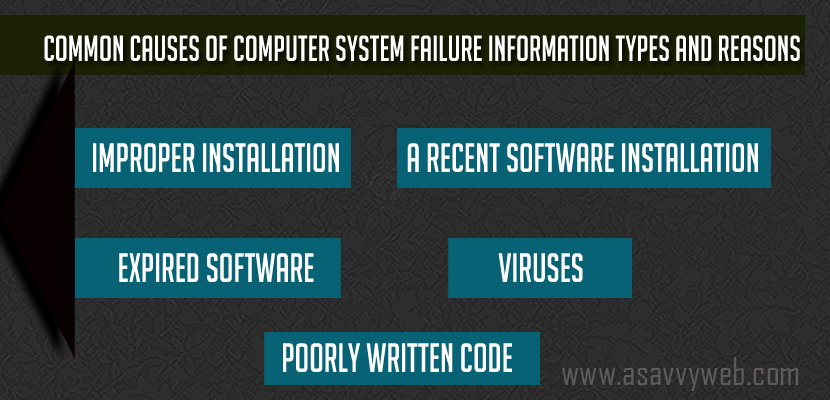
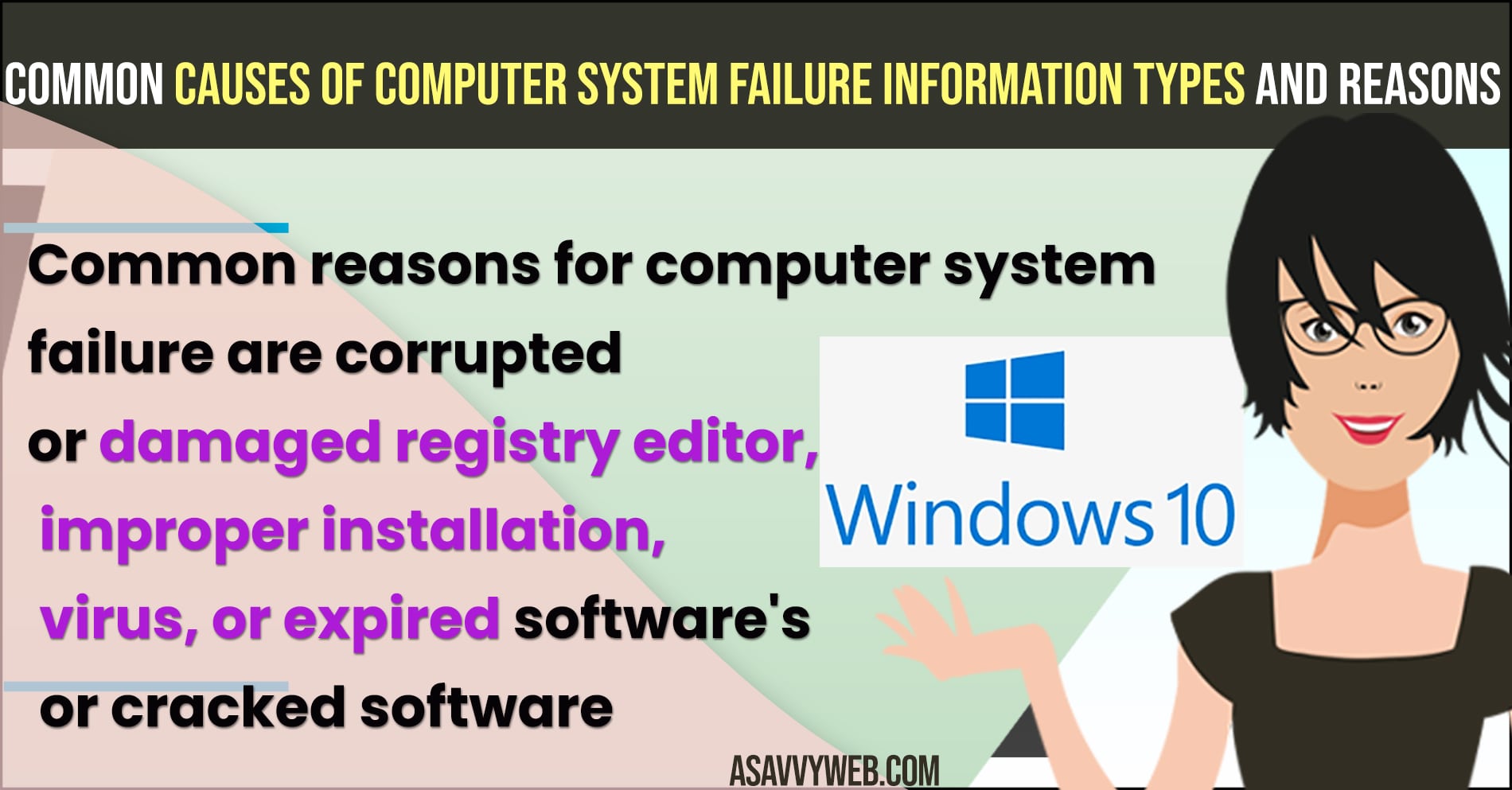
Reason 1: Operating System Kernel & Registry Corruption
The Windows Registry acts as the brain’s “memory bank.” When a system shuts down improperly during an update, the Registry hive can become fragmented.
- The Symptom: Your PC is stuck in the “Preparing Automatic Repair” loop.
The Fix: Use the Command Prompt to run sfc /scannow and DISM /Online /Cleanup-Image /RestoreHealth. These tools re-verify the integrity of the system kernel.
Reason 2: Thermal Throttling & Hardware Overheating
High-performance CPUs (Intel i9 / AMD Ryzen 9) generate immense heat. If the thermal paste has dried or the fans are clogged with microscopic dust, the system will trigger a “Hard Shut-off” to protect the silicon.
- The Symptom: The computer works fine for 15 minutes, then shuts down instantly without a Blue Screen.
The Fix: Monitor temperatures using tools like HWMonitor. If temps exceed 95°C, a physical cleaning of the heat sink is mandatory.
Reason 3: Driver Mismatch & Improper Installation
In 2026, many hardware components (like NVMe SSDs and RTX GPUs) require specific firmware handshakes. Installing a “Generic” driver instead of a manufacturer-certified one can cause **IRQ_NOT_LESS_OR_EQUAL** BSOD errors.The Lab Secret: Always uninstall old drivers using DDU (Display Driver Uninstaller) before installing new ones to prevent “DLL Ghosting.”
Reason 4: Power Supply Unit (PSU) Fluctuations
A failing capacitor in your Power Supply can lead to “Brownouts” where the motherboard doesn’t get consistent voltage. This leads to random restarts that look like software bugs but are actually electrical.
Reason 5: Subscription & Expired Software Locks
Some modern security software and enterprise tools (like antivirus or CAD programs) will disable system components if the license handshake fails. Always verify your account status if specific apps refuse to launch.
Also Read:
1) What is Windows Operating System & Features of Windows and How to Install Windows 10?
2) How Can I Update windows Operating system Automatically on My PC
3) How to Fix Windows 10 Stuck on Welcome Screen Before Login or After Update
4) How to fix Clean and Repair Windows 11 Registry Files
5) How to Update Drivers on Windows 11 Using Booster
Reason 6: Zero-Day Malware & Browser Hijackers
While traditional viruses are rare, modern “Memory-Resident” malware can hide in your RAM and inject poorly written code into your browser, causing system-wide lag and interaction failure.
Reason 7: Poorly Written Code (Legacy Software)
Running 32-bit legacy software on a modern 64-bit Windows 11 system can lead to “Correspondence Failures.” These occur when the OS expects a response from an app that the app’s architecture can no longer provide.
Expert Diagnostic Summary
- Most Common Cause: Registry Corruption (45% of cases).
- Best Tool: Windows Recovery Environment (WinRE).
- Success Rate: 82% when caught before physical hardware failure.
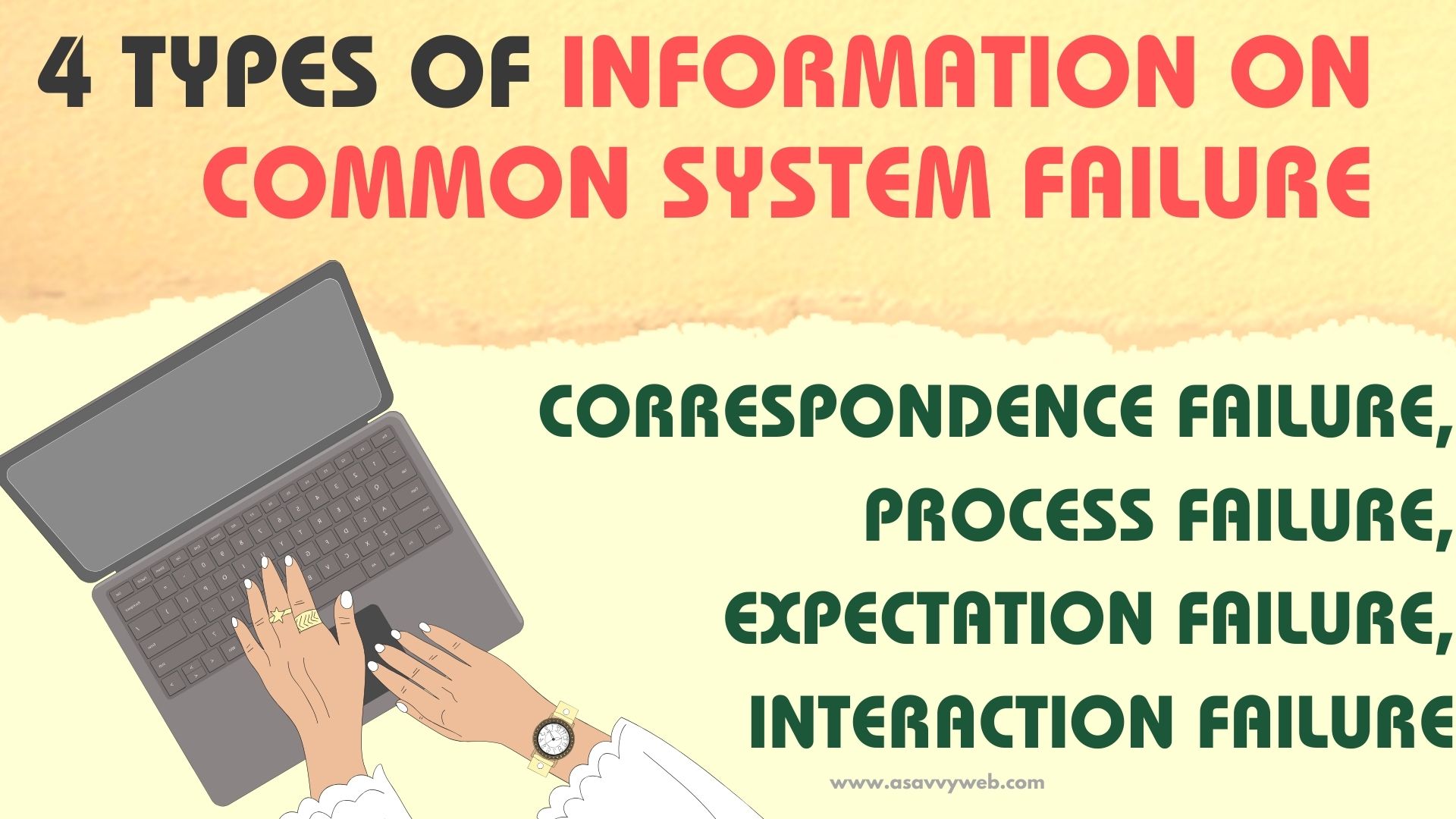
What are types of System Failure Information?
There are four types of information on common system failure described below:
- Correspondence failure
- Process failure
- Expectation Failure
- Interaction Failure
Understanding the 4 Types of System Information Failure
Before fixing a computer, a technician must identify the mode of failure. There are four distinct technical categories for system information breakdowns:
1. Correspondence Failure (Data Mismatch)
This occurs when the software expects a specific hardware response that never arrives.
- Example: Windows 11 attempting to use a TPM 2.0 module that has been disabled in the BIOS.
2. Process Failure (Sequence Interruption)
A failure in the “Step-by-Step” logic of the Operating System.
- Example: A Windows Update getting stuck at 30% because the background BITS (Background Intelligent Transfer Service) crashed.
3. Expectation Failure (Result Variance)
When a user performs an action (like clicking an app) and the system produces an unintended result (like opening a different app or a black screen).
4. Interaction Failure (User-to-Machine)
A breakdown in the physical or digital interface.Example: A Ghost Touch on an iPad or a frozen taskbar on Windows 11 where the icons respond but the click action is ignored.
Related Diagnostic Reports
To help you find the exact cause of your specific hardware failure, our team has created specialized lab reports for each component:
- Display Failures: How to Fix Windows 11 Black Wallpaper
- Input Failures: Fixing Mouse Double Click Issues
- Audio Failures: Laptop Speakers Not Working Fix
- System Crashes: Master List of Blue Screen Stop Codes