

Installing apps on a Samsung Smart TV has evolved significantly with the release of Tizen OS 8.0. While the process seems straightforward, many users encounter “Server Not Available” or “Download Pending” errors.
🔬 Samsung App Deployment Hub
| 🔴 Your Install Method | 🔵 Hub Solution Path |
|---|---|
Official App Store Standard Smart Hub installation. |
Store Sync Fix |
Sideloading (USB) Installing apps via Tizen Studio. |
Enable Dev Mode |
“Download Pending” Apps get stuck at 0% or 100%. |
Purge Store Cache |
It is important to note that Samsung TVs do not run Android OS; they use a proprietary Linux-based system called Tizen. Therefore, standard Android APK files will not work without specific conversion or developer-mode sideloading. Our lab at asavvyweb has verified these three methods to get your favorite streaming services up and running.
Method 1: Using the Official Samsung App Store (Smart Hub)
This is the most secure and common way to install certified apps like Netflix, Disney+, and YouTube.
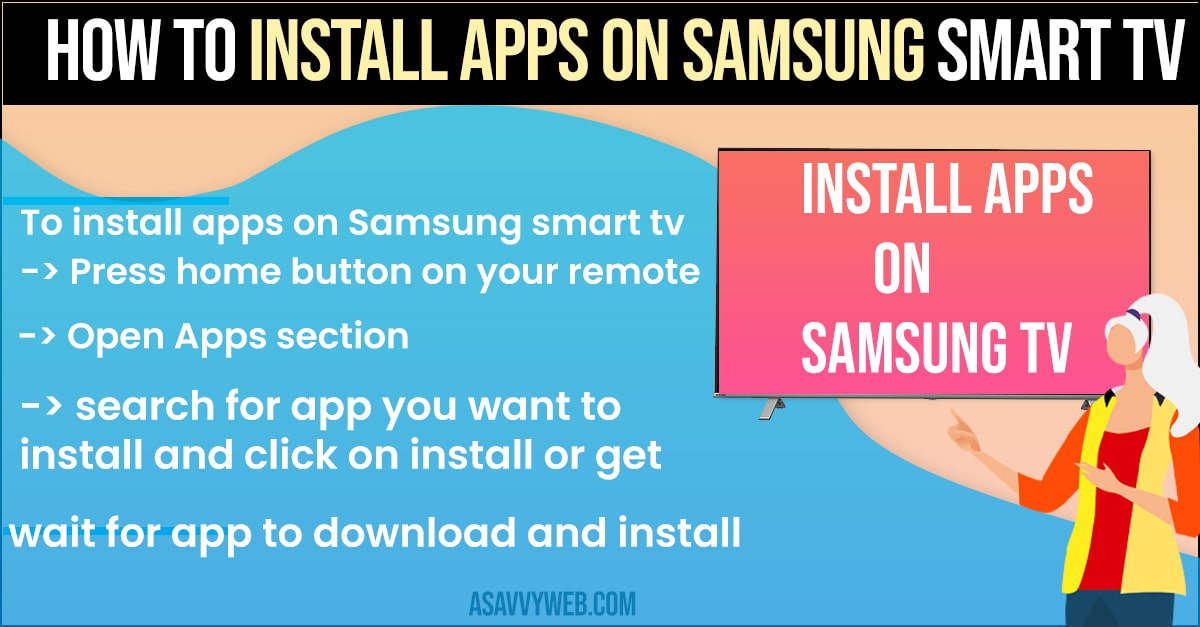
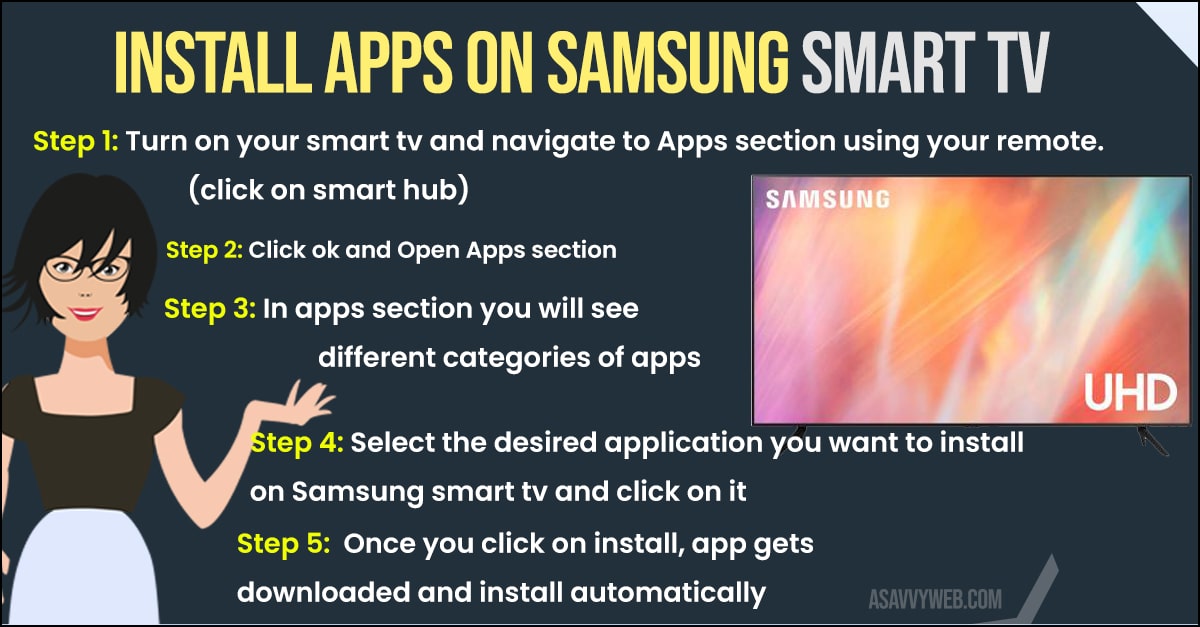
1. Press the Home button on your remote to open the Smart Hub.
2. Navigate left to the Apps icon (four small squares) and select it.
3. Click the Search Icon (Magnifying glass) in the top-right corner.
4. Type the name of the app and select Install.
5. The Expert Tip: If the “Install” button is missing, you must log into your Samsung Account under `Settings > General > System Manager > Samsung Account`.
Method 2: Sideloading Apps via USB (Developer Mode)
If you need an app that isn’t in your region’s store, you can use the USB method.
1. Download the .tpk or .wgt file (Not APK) to a FAT32-formatted USB drive.
2. On your TV, go to Settings > Smart Hub > App Settings.
3. Enable Developer Mode (Note: You may need to enter the code `12345`).
4. Insert the USB drive; the TV will automatically prompt you to install the detected package.
Method 3: Fixing “App Installation Failed” Errors
If your apps are stuck in a “Pending” loop:
1. Cold Boot the TV: Hold the Power Button on your remote for 10 seconds until the TV turns off and on again.
2. Clear Hub Cache: Go to `Settings > Support > Self Diagnosis > Reset Smart Hub`.
3. Warning: Resetting the Smart Hub will sign you out of all apps, but it clears the “Zombie Cache” that prevents new installations.
Note: If you are not seeing app listed do a search by using search bar at the top by typing the name of the application.
Also Read: 1) Download and Install Apps on Samsung Smart Tv
2) How to Remove or Delete preinstalled apps on Samsung smart TV
3) How to Fix Samsung Smart TV Apps Not Installing
4) How to install 3rd party apps on Samsung Smart tv using APK, usb
5) How to Download, Install and Watch Spectrum TV on Sony Smart TV
Can i install apps on Samsung Smart Which are not listed on Samsung App store (Samsung HUB)
Yes! You can install apps on Samsung tv which are not present on Samsung tv store (smart hub) as well for that you will have to download supported installation file and allow apps to install from unknown sources and install apps on Samsung tv.