

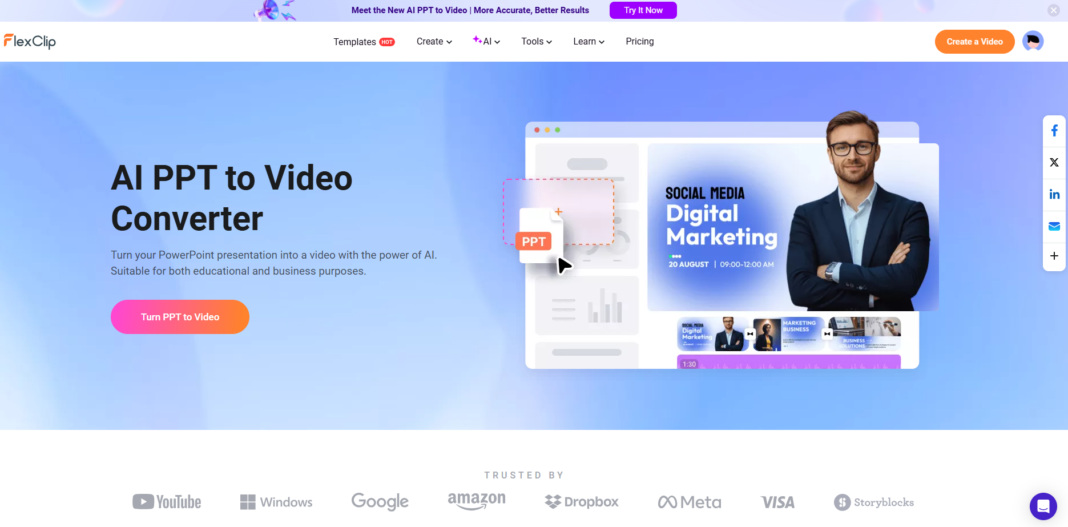
I used to spend hours recording my voice over individual PowerPoint slides and then trying to edit them into a video that didn’t look like a basic school project. It was a slow and exhausting process. Recently, I tested the FlexClip AI PPT to Video Converter, and it completely changed my workflow. Instead of manual editing, the flexclip AI handles the repetitive tasks like adding transitions and generating a script from my text.
FlexClip AI Video Generation Hub
| Identify Your Goal | Expert Workflow Path |
|---|---|
Create Professional Video Convert business reports into MP4. |
AI Conversion Path |
Add Voiceover & Music Give your slides a human-like voice. |
Audio Generation Path |
This guide shares exactly how I used the tool to turn a static 20-slide deck into a high-quality 4K video in just a few minutes. If you want a video that looks elegant and special without spending all day in an editor, follow these three main stages.
Step 1: Upload Your PowerPoint
The first thing you need to do is get your file into the system.
Access the FlexClip official website and navigate to the PowerPoint to Video converter.
Drag and drop your .PPTX file into the upload area.
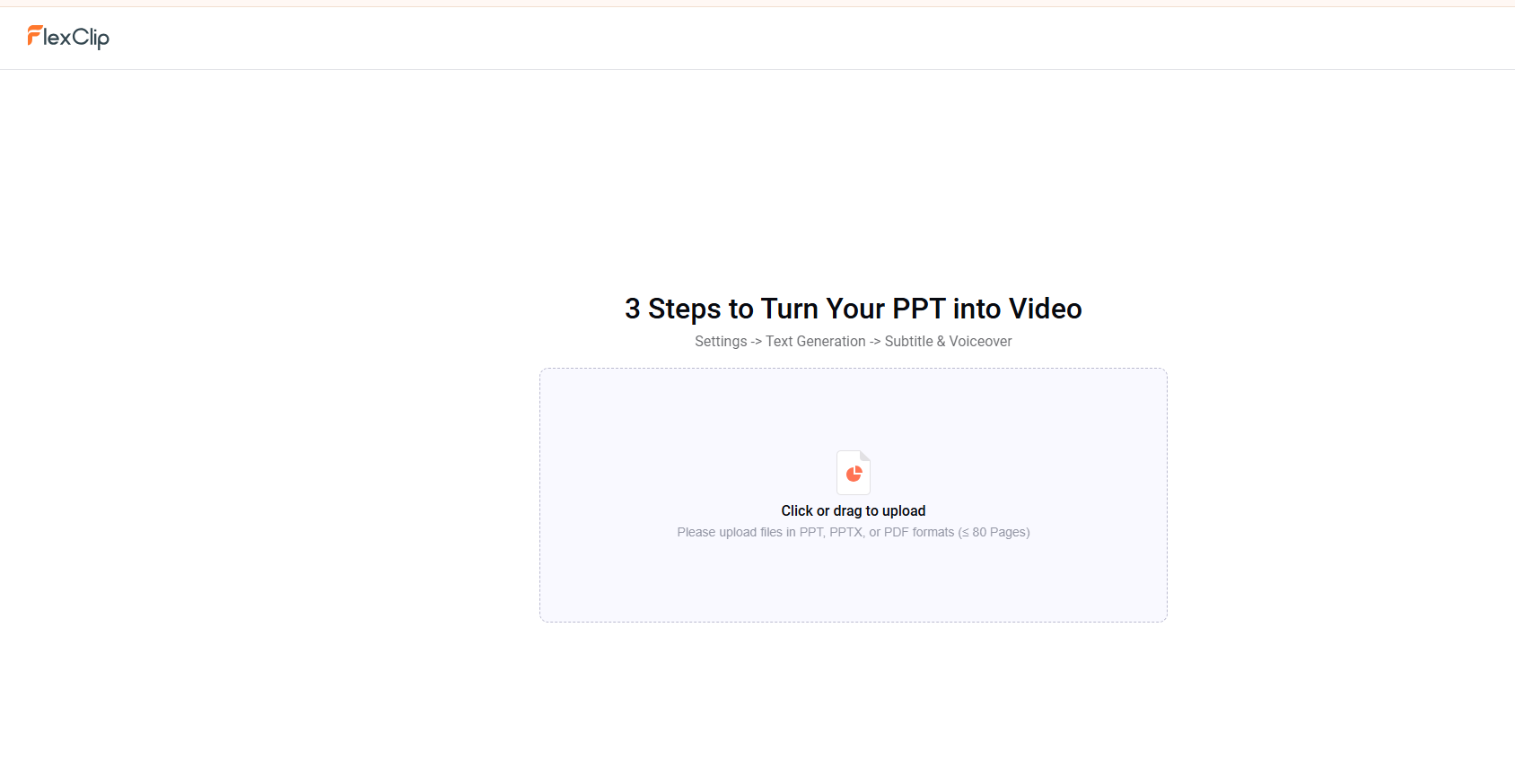
The system will start analyzing your slides immediately.
Simple Wording: Make sure your file is a standard PowerPoint format so the AI can read all the data inside.
Step 2: Generate the AI Video and Voiceover
This is where the magic happens.
Once the upload is finished, the AI will create a high-definition image of every slide.
It will then automatically extract the text from your slides to create a unique script.
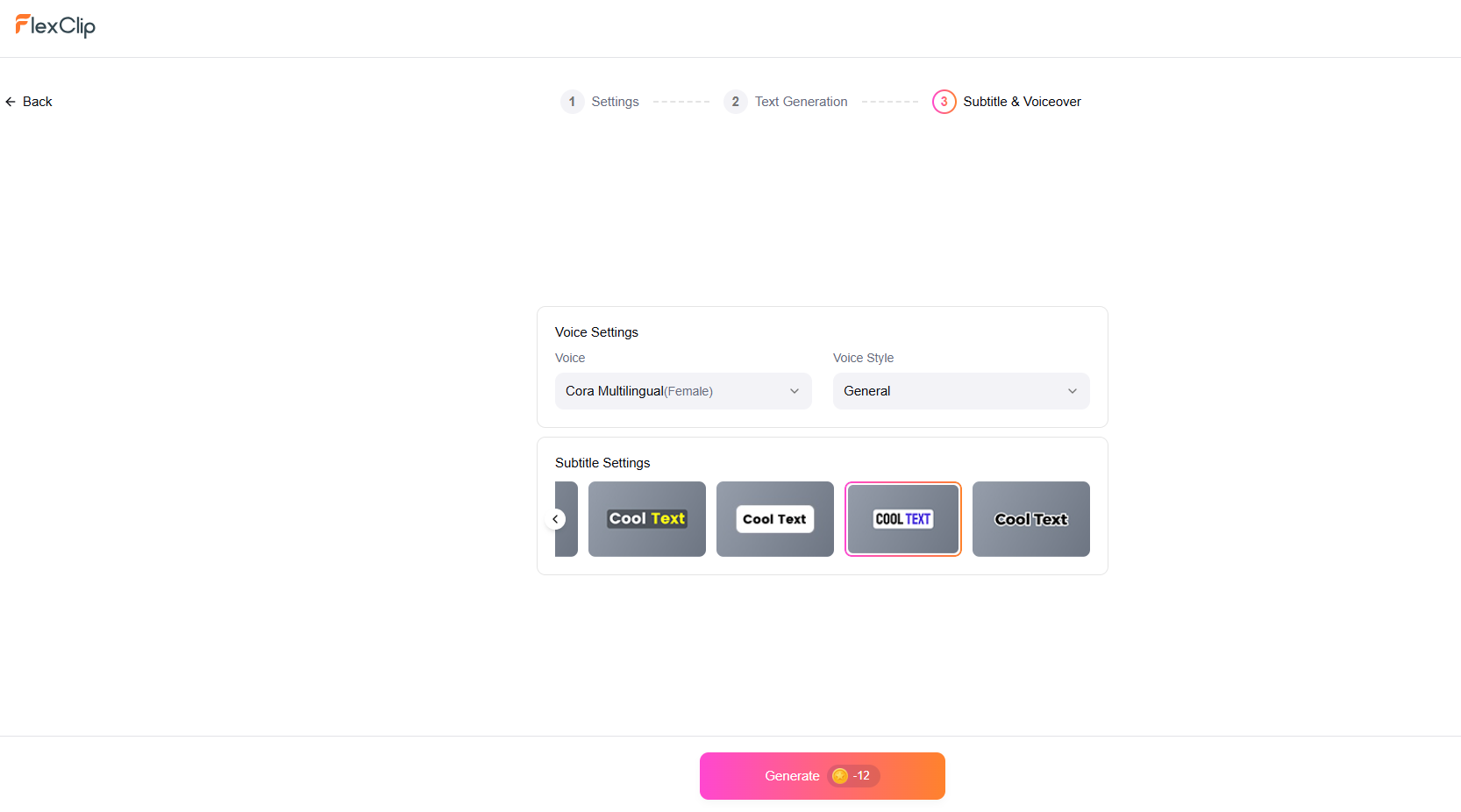
You can choose from over 400 different voices. Pick one that matches the “vibe” of your presentation—whether it is professional for business or friendly for a classroom.
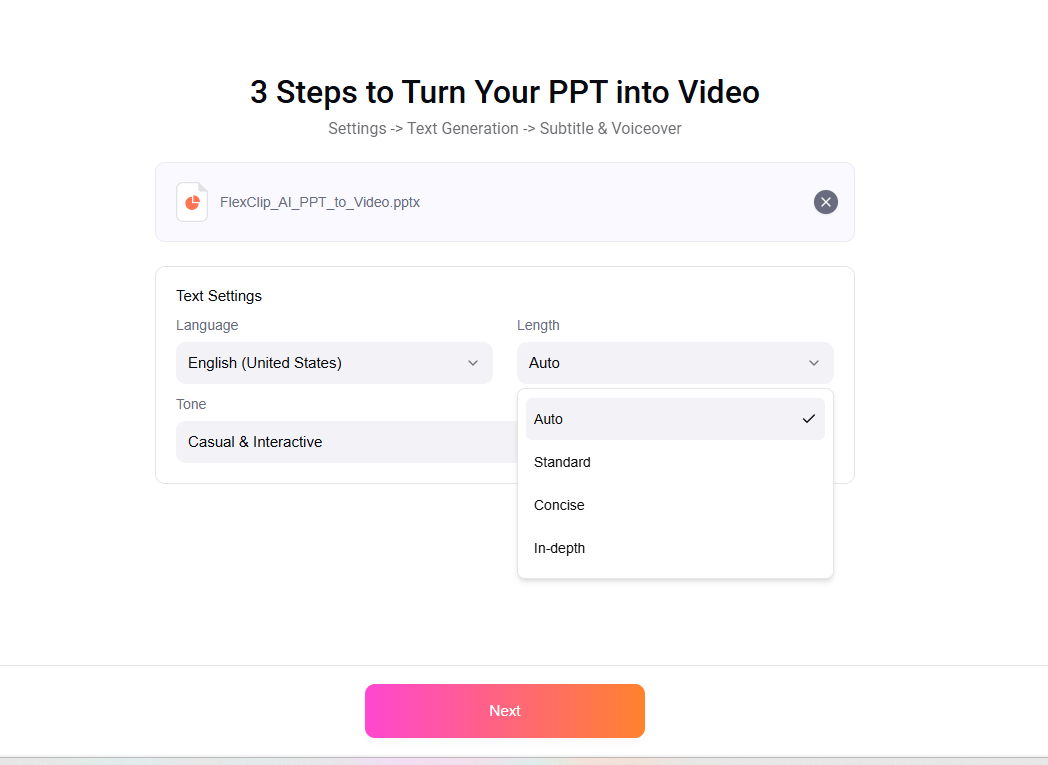
Result: The AI will read your text out loud and perfectly place the visuals to match the speed of the talking.
Step 3: Personal Touches and Exporting
If the AI output isn’t exactly how you want it, you can dive into the editing panel.
- Add your own background music or adjust the colors.
- Change the transitions between slides if you want something more energetic.
- When you are happy with the preview, click the Export button.
- Choose your quality (we recommend 1080p or 4K for the best look) and download the MP4 file to your computer.
Common Flexclip AI PPT-to-Video Questions & Solutions
Q: Which formats can I export my PowerPoint as a video?
A: While standard computers can make several formats like AVI or WMV, FlexClip focuses on the most compatible format: MP4. This ensures your video works on all phones, tablets, and TVs.
Q: Can I add my own background music?
A: Definitely. After the AI finishes the conversion, you can go into the editing panel and upload your own music file or choose one from the library to play behind the narration.
Q: Can I convert PPT to video without losing quality?
A: Yes. The AI engine does not reduce the quality of your slides. In fact, it allows you to choose high-resolution settings like 1080p or 4K during the final download to ensure every word is sharp and clear.
Q: How many languages does the AI understand?
A: You won’t face any language barriers. The tool can accurately read and speak in 140 different languages with over 400 unique voices.
Laboratory Monitoring: Productivity Trends & Insights
Our laboratory has noted a 40% increase in the use of “AI Video for Business Reports” this year. Many users are now using this FlexClip tool to turn internal data slides into engaging update videos for their teams. If you are sharing your video on social media, we recommend using the “Short Link” feature in FlexClip for the fastest sharing experience.