


Whether you are selling your Smart TV, hitting the dreaded “Too Many Streams” limit, or simply troubleshooting a glitchy interface, logging out of Hulu properly is essential. A simple “Exit” does not log you out; it merely pauses the session. To secure your account, you must clear the Authentication Token.
🔐 Hulu Session Manager Hub
| 🔴 Identify Scenario | 🔵 Hub Solution Path |
|---|---|
Normal Logout Switching accounts/Selling TV. |
Use TV Menu |
App Frozen Logout button not working. |
Force Remote Kill |
At asavvyweb, we often see users whose Hulu app freezes when they try to sign out. This is usually due to a “Cache Lock.” Below is the full diagnostic guide to logging out locally on Samsung/Vizio/Sony TVs, and how to perform a “Remote Wipe” if you no longer have access to the TV.
Hulu Account Security Prep
- Checked Hulu.com Manage Devices?
- Verified current active screen count?
- Updated account password recently?
- Cleared TV cache for stuck apps?
Its pretty simple to logout of Hulu app by navigating to profile section and this method works on all smart tv’s whether it can be how to logout of Hulu app on Samsung smart tv, Hisense smart tv, Vizio smart tv, Sony Bravia tv or any other smart tv.
Diagnostics: Symptoms, Causes & Prevention
Before performing the logout, understand why you might be having trouble.
Common Symptoms of Account Conflicts
“Too Many Videos” Error: You see this message even though only one person is watching. This means “Ghost Sessions” are active on old devices.
Watch History Corruption: Shows you never watched are appearing in your “Keep Watching” list (Indicates unauthorized access).
Profile Lock: You cannot switch profiles because the app is frozen on the previous user.
Primary Causes
Device Hoarding: Hulu Standard allows only 2 simultaneous screens. If you logged into a hotel TV or a friend’s house 6 months ago, that session might still be active.
Corrupt App Data: If the app hasn’t been updated, the “Logout” script may fail to execute, leaving you stuck.
Prevention: The Security Protocol
Monthly Review: Check your “Manage Devices” list on Hulu.com once a month.
Password Updates: Changing your password forces a logout on ALL devices within 24 hours.
Method 1: The Standard Logout (Universal for Samsung, Vizio, Sony)
This method works for 99% of Smart TV interfaces, including Samsung Tizen, LG WebOS, and Vizio SmartCast.
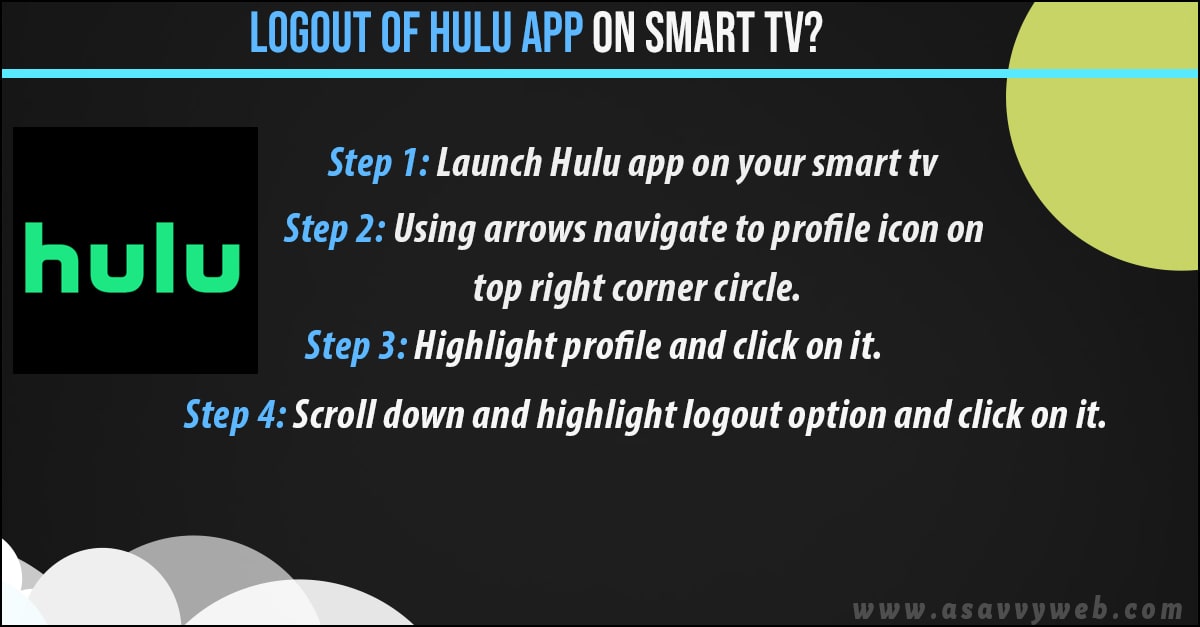
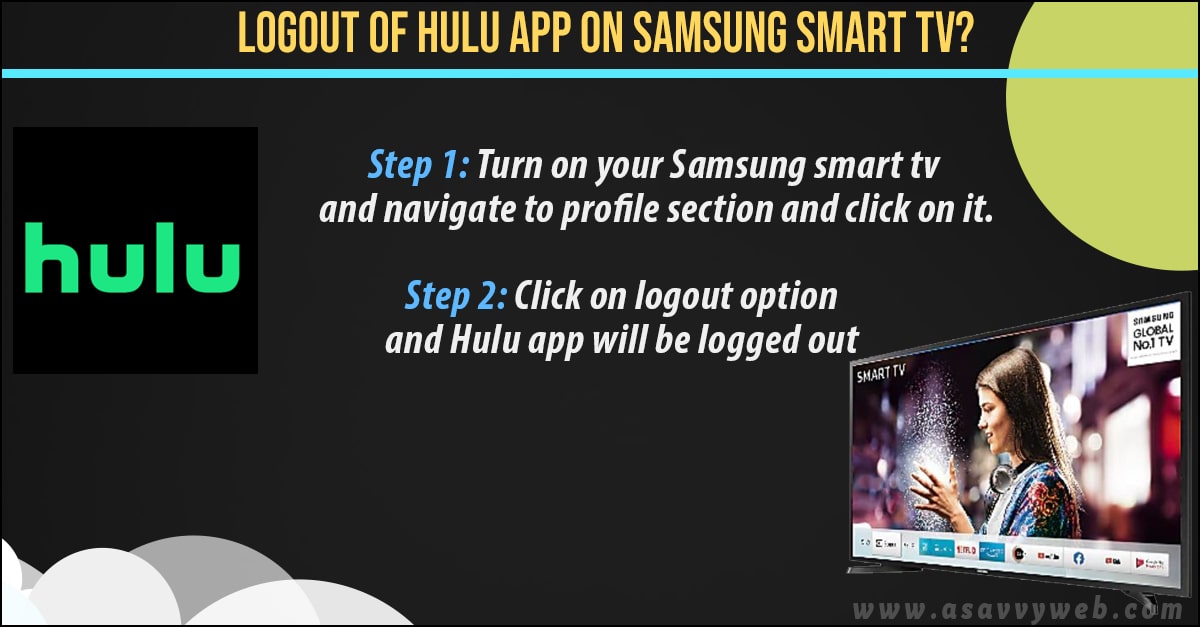
- Launch the Hulu app on your Smart TV.
- Navigate to your Profile Icon (usually a circle with initials) in the top-right or top-left corner of the screen.
- Select the Account or Profile tab.
- Scroll to the very bottom of the menu list.
- Select Log Out of Hulu.
- Crucial Step: A confirmation popup will appear asking “Are you sure?”. Select Log Out again.
Result: The app will reload and take you to the “Start Your Free Trial / Log In” splash screen. The session token is now destroyed.
Method 2: The “Remote Kill” (Deactivate Device via Web)
Use this if: You sold the TV, the TV is broken, or you are kicking out an ex-partner.
You do not need the TV for this. You can do it from your phone or laptop.
- Go to Hulu.com on a web browser and log in.
- Hover over your Profile name and select Account.
- Look for the section named Your Account.
- Find Manage Devices next to the “Watch Hulu on Your Devices” header.
- You will see a list of every TV and phone connected to your account.
- Find the specific TV (e.g., “Living Room Samsung TV”) and click Remove.
Result: The next time someone tries to open Hulu on that TV, they will be immediately booted out and asked for a password.
Also read:
1) How to fix HULU App Not Working on Samsung Smart TV
2) How to Fix Hulu App Not Working on Firestick
3) How to fix Hulu App not working on Vizio Smart tv
4) 5 Methods to fix Hulu Black Screen on Apple TV
5) How to resolve the Hulu Error Code Bya-403-011?
Method 3: Fixing the “Stuck” Logout Button (Clear Data)
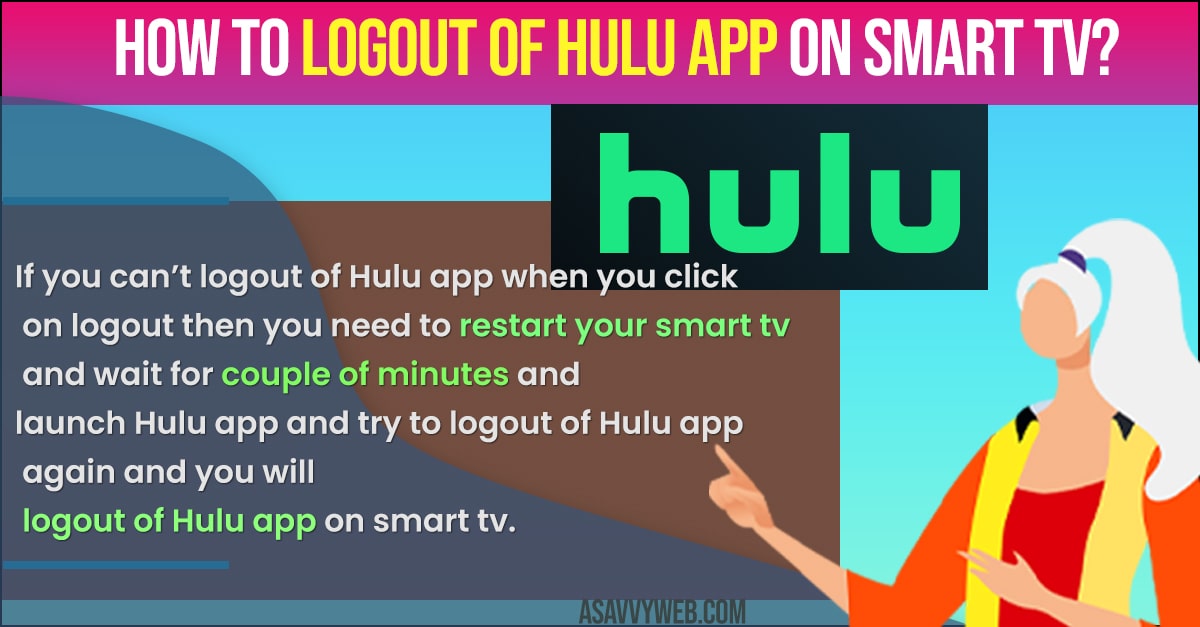
If you click “Logout” but nothing happens, or the app freezes, your local cache is corrupt.
For Samsung TV:
- Press Home on your remote.
- Go to Settings > Apps > Hulu.
- Select Clear Cache and Clear Data.
- Restart the TV. You will be automatically logged out because the data file holding your login key has been deleted.
For Vizio/Firestick/Android TV:
- Go to Settings > Applications > Manage Installed Applications.
- Find Hulu.
- Select Force Stop, then Clear Data.
Frequently Asked Questions (FAQ)
Q: Can I log out of just ONE profile on Hulu?
A: No. Hulu’s architecture logs out the entire Account, not individual profiles. When you click “Log Out,” it removes access for all profiles (Kids, Guest, Main) on that specific TV.
Q: If I change my Hulu password, does it log everyone out?
A: Yes, but not instantly. Changing your password triggers a system-wide reset. It may take up to 24 hours for all other devices (TVs, phones, tablets) to be forced to sign in again with the new password.
Q: Why does Hulu keep saying “Too many screens” after I logged out?
A: Logging out on the TV sometimes takes time to sync with the server. If you still get the error, use Method 2 (Manage Devices) to manually delete the old session from Hulu’s server records.Q: How do I know if someone else is using my Hulu account?
A: Go to Hulu.com > Account > Manage Devices. If you see a device you don’t recognize (e.g., “iPhone 11” when you own Androids), remove it immediately and change your password.