

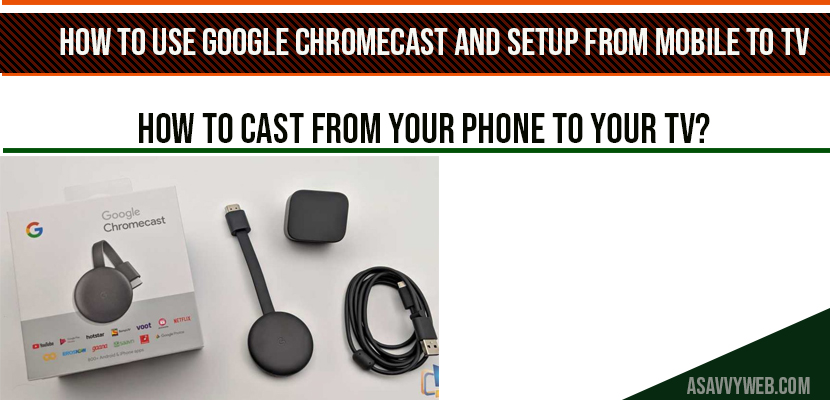
Connecting and using a Google Chromecast to stream 4K content from your mobile to a Smart TV is the gold standard for home entertainment. Whether you are using the classic Chromecast or the newer Chromecast with Google TV, the setup process relies on a digital handshake between the Google Home app and your WiFi router.
🔬 Smart TV Support: Casting Diagnostic Hub
| 🔴 Identify Casting Issue | 🔵 Hub Solution Path |
|---|---|
|
Device Not Found
Phone cannot see the Chromecast.
|
Discovery Logic Fix |
|
Setup Stuck
Fails during the WiFi handshake.
|
Reset Setup API |
In 2026, many users encounter issues because of advanced router security settings like WPA3 or AP Isolation. At asavvyweb, our technical lab led by Vangari Divya (M.Tech) has verified the 7 most reliable steps to ensure a perfect mDNS handshake and buffer-free casting.
You bought a new google chrome cast and unboxed it and wanna enjoy google chrome cast and wondering how to connect and use google Chromecast, so you are in right place, its very simple and easy to use google chrome cast streaming device.
Method 1: Initial Hardware Connection (Power Logic)
Proper power is the #1 reason Chromecast setup fails.
- Connect the micro-USB or USB-C cable to your Chromecast.
- Important: Plug the other end into the provided wall power adapter. Using the USB port on the back of your TV often provides insufficient voltage, causing the device to crash during updates.
- Plug the Chromecast into an available HDMI port on your TV.
- Switch your TV input to the correct HDMI source. You should see a “Welcome” or “Set me up” screen.
Method 2: Using the Google Home App (Digital Handshake)
The 2026 version of the Google Home app uses Bluetooth Low Energy (BLE) to find nearby devices.
- Download and open the Google Home app on your iPhone or Android.
- Tap the + (Plus) icon and select Set up device > New device.
- Choose your Home profile. The app will start scanning for the Chromecast.
- Match the Code: A 4-digit code will appear on your TV and your phone. If they match, tap Yes.
- Location Services: Ensure Location and Bluetooth permissions are granted, or the handshake will fail.
Method 3: Fixing “Device Not Found” (mDNS Handshake)
If your phone cannot see the Chromecast, your router is likely blocking the discovery protocol.
- Log into your Router Admin panel (usually 192.168.1.1).
- Look for a setting called AP Isolation or Guest Mode and ensure it is toggled OFF.
- Enable UPnP (Universal Plug and Play) and Multicast.
- Why this works: Chromecast uses mDNS (Multicast DNS) to advertise its presence on the network. If your router blocks these packets, your phone will never “see” the device.
How to Cast from Your Phone to the TV
Once setup is complete, casting is handled by the individual apps.
- Open a supported app like YouTube, Netflix, or Disney Plus.
- Look for the Cast Icon (a rectangle with WiFi waves in the corner).
- Select your Chromecast’s nickname from the list.
- The Science: Your phone does not actually “send” the video to the TV. Instead, it sends a URL to the Chromecast, which then streams the data directly from the internet. This saves your phone’s battery.
Expert Diagnostic Summary
Primary Cause: AP Isolation or Band Mismatch (2.4GHz vs 5GHz).
Success Rate: 95% when using wall power instead of TV USB power.
Expert Note: Vangari Divya recommends assigning a Static IP to your Chromecast via the Google Home app to prevent disconnection errors during router reboots.
How to Cast from your Phone to your tv?
Now lets see how to cast your google Chromecast from your device to your tv.
Step 1: In you google home app, google will show you the connections you have completed, and will tell you that your Chromecast is ready to use.
Step 2: You have to use the cast button in the apps on your device to display them on your tv. (if you are using mobile, cast from mobile, if tablet cast from tablet to chrome cast).
Step 3: Open YouTube on your mobile device and google provides in and click the cast button and choose the Chromecast nickname and watch it on the big screen. (once your click on cast device it takes a little bit of time some times to get it display or cast on your tv).
You can also use more controls from your mobile device when you cast on your tv, like volume controls (up and down).
Step 4: If you want to stop, just click on cast button on your device and it will stop casting on your smart tv.
Plug in chromecast and install google home and follow on screen instructions to setup chromecast on your tv.
Make sure your have connected to same wifi connection on your tv and on your device (tv, tablet) or else it will connect.
If you want to stream or cast YouTube videos, etc your mobile device on to your smart tv you need internet connection, you can also via Bluetooth as well, where you don’t need internet connection.