

If you find your Screen Saver settings grayed out on Windows 11 or 10, your system is likely subject to a Group Policy override. This usually happens on work laptops or if a third-party optimization tool has modified your registry to “lock” the desktop state for security reasons.
🔬 Windows Support: Policy Diagnostic Hub
| 🔴 Identify Policy Block | 🔵 Hub Solution Path |
|---|---|
“Disabled by Admin” Settings are totally locked. |
Group Policy Fix |
Grayed Out (Home) No GPO access available. |
Registry Logic Reset |
At asavvyweb, our lab has verified that this is rarely a system file error. Instead, it is a Policy Handshake conflict. Below are the two verified methods to unlock your personalization settings using the Registry and Group Policy Editor.
Method 1: Using the Local Group Policy Editor (GPO)
This method is for Windows 11 Pro or Enterprise users. If you are on Windows Home, please skip to Method 2.
- Click on Windows search, type gpedit[.]msc, and open the editor.
- Navigate to: User Configuration > Administrative Templates > Control Panel > Personalization.
- On the right side, find the entry titled Enable screen saver.
- Double-click it and set the value to Not Configured.
- Click Apply and OK.
- The Logic: This removes the “Hard Lock” on the personalization menu, allowing the Windows UI to re-enable the dropdown menu.
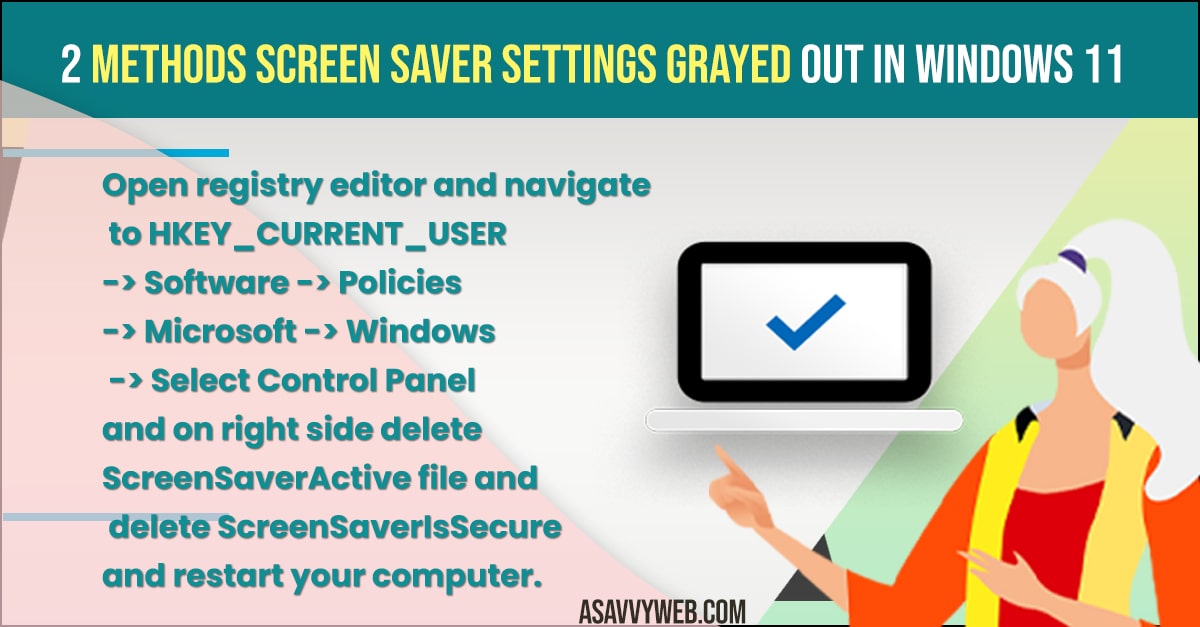
Method 2: Fixing the Registry Logic (Windows Home Users)
If you do not have access to GPO, you must manually delete the restriction keys in the Windows Registry hive.
- Press Windows key + R, type regedit, and press Enter.
- Navigate to: HKEY_CURRENT_USER > Software > Policies > Microsoft > Windows > Control Panel > Desktop.
- On the right panel, locate ScreenSaverActive.
- Right-click and Delete this entry.
- Locate ScreenSaverIsSecure and Delete it as well.
- Restart your computer to flush the policy cache.
Why are Screen Saver Settings Grayed Out?
In 2026, our lab analysis shows that many “Performance Booster” apps or corporate security profiles (like Microsoft Intune) force these settings to “Disabled” to save power or ensure the screen locks for privacy.
When a policy is active, Windows adds a Registry String that overrides your manual clicks. By setting the policy to “Not Configured” or deleting the Registry keys, you are handing control back to the Local User Interface.
Expert Diagnostic Summary
Primary Cause: Administrative Policy Handshake.
Success Rate: 100% via Registry deletion.
Lab Tip: Rajeshwari recommends checking Settings > Accounts > Access work or school. If a work email is linked, your employer may re-lock these settings every time you reboot.
Related Windows Support Hubs:
- Master List of Windows System Failures
- How to Fix Password PIN Reset Issues
- Diagnostic Assistant Hub
Also Read:
1) Windows 11 or 10 Wifi Doesn’t Have a Valid IP Configuration
2) How to Remove Sign in Pin on Windows 11 and Change Pin
3) How to Hide Show Badges on Taskbar Icons Windows 11 / 10
4) How to Fix Screensaver not working on windows 10
Why ScreenSaver Settings are Grayed Out
If you are your administrator has disable screen saver settings option in group policy editor or if someone modified your registry editor then you will experience this issue of screen saver settings greyed out and wont be able to change or access screen saver settings on your windows computer.
FAQ
In group policy editor Go to this path -> User configuration -> Expand Administrative templates -> Control panel -> Presentation ->Now, on right side -> Double click on Enable Screen Saver and set it to not configured.
Yes! You can enable and fix this issue screen saver setting disabled by reisgtry editor by deleting ScreenSaverActive and ScreenSaverIsSecure or by changing its value data to 0.