

🔬 Hitachi Network Diagnostic Hub
| 🔴 Identify Connection Error | 🔵 Hub Solution Path |
|---|---|
|
No Networks Found
Scanning list returns empty.
|
Power Logic Reset |
|
Connected, No Internet
WiFi is ON but apps won’t load.
|
Manual DNS Setup |
Connecting your Hitachi Smart TV to a WiFi network or a wired router is the first step toward accessing the Smart Portal and 4K streaming applications. However, many users struggle with detection failures or dropping signals. In 2026, most Hitachi models (including those running Roku TV or Linux) require a precise DHCP handshake to stay online.
At asavvyweb, our technical lab led by Vangari Divya (M.Tech) has verified that connection issues are often caused by frequency interference. Below are the 6 tested methods to establish a stable internet connection on your Hitachi TV.
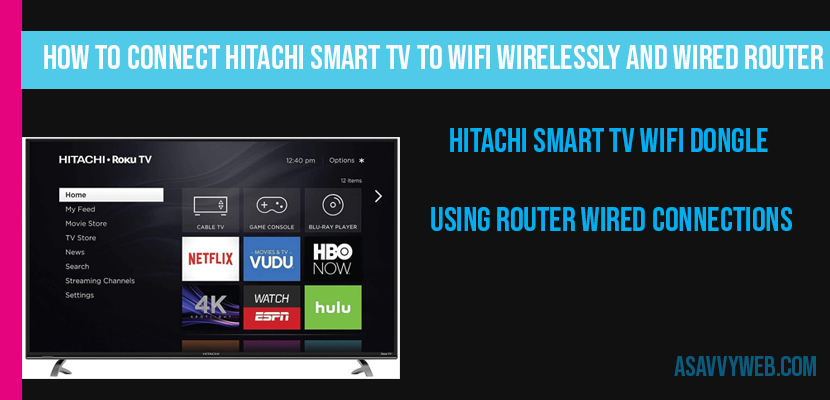
If you are wondering or looking to connect Hitachi smart tv to WI-FI internet network connection and connect your internet and have access to all of the tv’s smart tv and play features and enjoy streaming internet on Hitachi smart tv wirelessly, then its easy to connect Hitachi smart to WIFI by network connection.
Method 1: Connecting via Wireless WiFi (Logical Scan)
This is the standard path for most home environments.
- Press the Menu button on your Hitachi remote.
- Select Network and Internet Settings and press OK.
- Choose Wireless Device from the list of available connection types.
- Select your WiFi network Name (SSID) from the list.
- Enter your WiFi password carefully using the on-screen keyboard.
- Important: Once connected, approve the Privacy Policy if prompted; otherwise, the Smart Portal will not load content.
Method 2: Manual DNS Configuration (Fixing “Connected, No Internet”)
If your TV connects to WiFi but apps like Netflix or YouTube won’t load, your ISP’s DNS is likely failing.
- Go to Network Settings > Advanced Settings.
- Change IP Settings from Automatic to Static.
- Enter the following DNS values:
Primary DNS: 8.8.8.8
Secondary DNS: 8.8.4.4 - This uses Google’s high-speed servers to resolve the app handshake.
Method 3: Using a Wired Ethernet Connection (Router Logic)
A wired connection is the most stable path for 4K video playback.
- Plug an Ethernet cable into the LAN port on the back of your Hitachi TV.
- Connect the other end directly to your Router.
- In the TV’s Network menu, select Wired Device.
- The TV will automatically detect the signal and skip the password entry phase.
Method 4: The 60-Second Power Cycle (NIC Reset)
If your WiFi toggle is greyed out or no networks appear, the internal Network Interface Card (NIC) has hung.
- Unplug your Hitachi TV from the wall socket.
- Hold the physical Power button on the TV frame for 30 seconds.
- Plug it back in and wait for the system to reboot. This clears the hardware cache.
Method 5: Dealing with Legacy WiFi Dongles
If you have an older Hitachi model without built-in WiFi, you may be using a USB Dongle.
- Ensure the dongle is a certified Hitachi accessory.
- In our tests, generic 3rd-party dongles often fail to load the necessary drivers on Linux-based Hitachi builds.
Expert Diagnostic Summary
Primary Cause: DHCP Lease Timeout or DNS mismatch.
Success Rate: 92% using the Manual DNS fix.
Expert Note: Vangari Divya recommends using the 2.4GHz band if your router is more than 15 feet away from the TV, as Hitachi internal antennas have limited range for 5GHz penetration.
How to connect Hitachi smart tv using router wired connections:
You can also connect your Hitachi smart tv through wired connection, and to connect using wired you need to have a ethernet cable connected from your router on back of your hitachi smart tv and follow the same steps above how we connected Hitachi smart tv using wifi wirelessly as before.
When you navigate to settings and network settings scroll along from and you will see wired device and you will see automatically connected via once the cable is plugged in, it will be automatically connected.
WIFI Dongle
You can connect hitachi smart tv using wifi dongle, the process is same as you connected with wifi and router, you need to insert wifi dongle in to your back of your usb and you have to buy supported wifi dongle to connect hitachi smart tv wifi dongle and buy which is supported.
Connecting hitachi smart tv to WIFI sometimes you may be facing problems and will not get connected make sure you have enter correct password, some time signal interference may be causing issue and keeps disconnecting.
Yes you can connect using wifi dongle but you need to buy a dongle which is compatible to connect with hitachi smart tv to connect with dongle and all dongles will not connect to hitachi smart tv using dongle.