

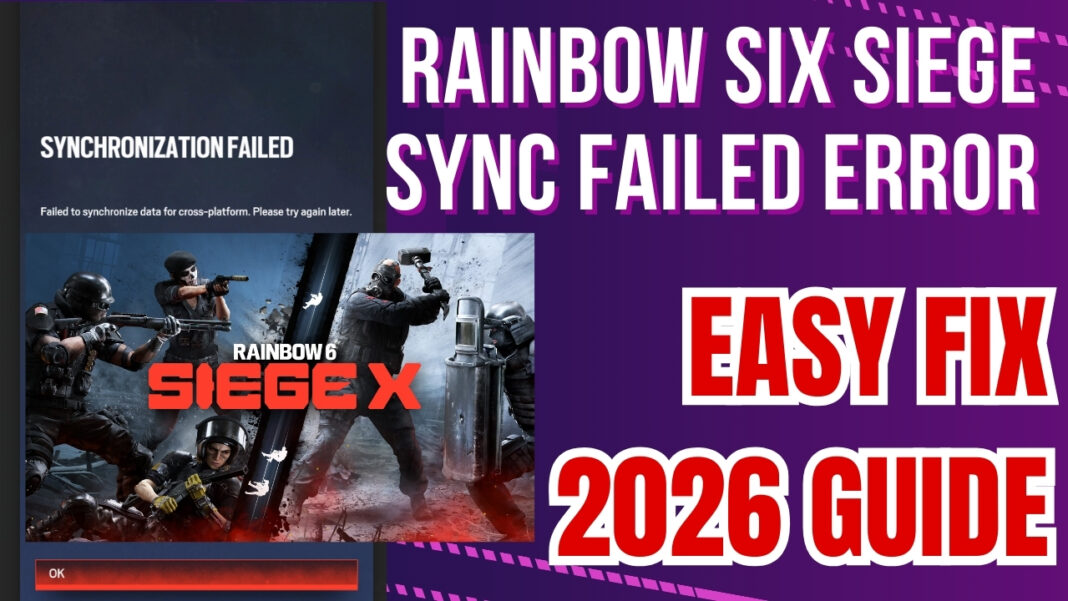
Many users are experiencing this sync issue and there are easy ways to resolve this and sync rainbow six siege. For every 3 to 5 seconds synchronization failed error will appear on your screen and this is very annoying and frustrating. First thing you need to go to is open ubisoft connect and go to exe file location and check run as administrator and it will sync.
USE 2FA and Cross Platform Fix
Login to your Ubisoft account and enable 2FA and make sure that your xbox console, ps5, and PC accounts are correctly linked. If they are not linked correctly then synchronization will fail.
How to Fix Rainbow Six Siege Synchronization Failed Error
- Enable 2-Step Verification: Go to Ubisoft Account Security and activate 2FA via email or mobile.
- Clear Ubisoft Connect Cache: Close the launcher, navigate to the ‘cache’ folder in your installation directory, and delete all files.
- Flush DNS: Open Command Prompt as Admin and type
ipconfig /flushdns. - Verify Game Files: Use Steam or Ubisoft Connect’s ‘Verify Files’ tool to repair corrupted data.
Why Rainbow Six Siege Sync Failed Error Occurs
This error usually happens due to:
- Poor or unstable internet connection
- Corrupted Ubisoft Connect cache
- Missing administrator permissions
- DNS or network conflicts
- Temporary Ubisoft server issues.
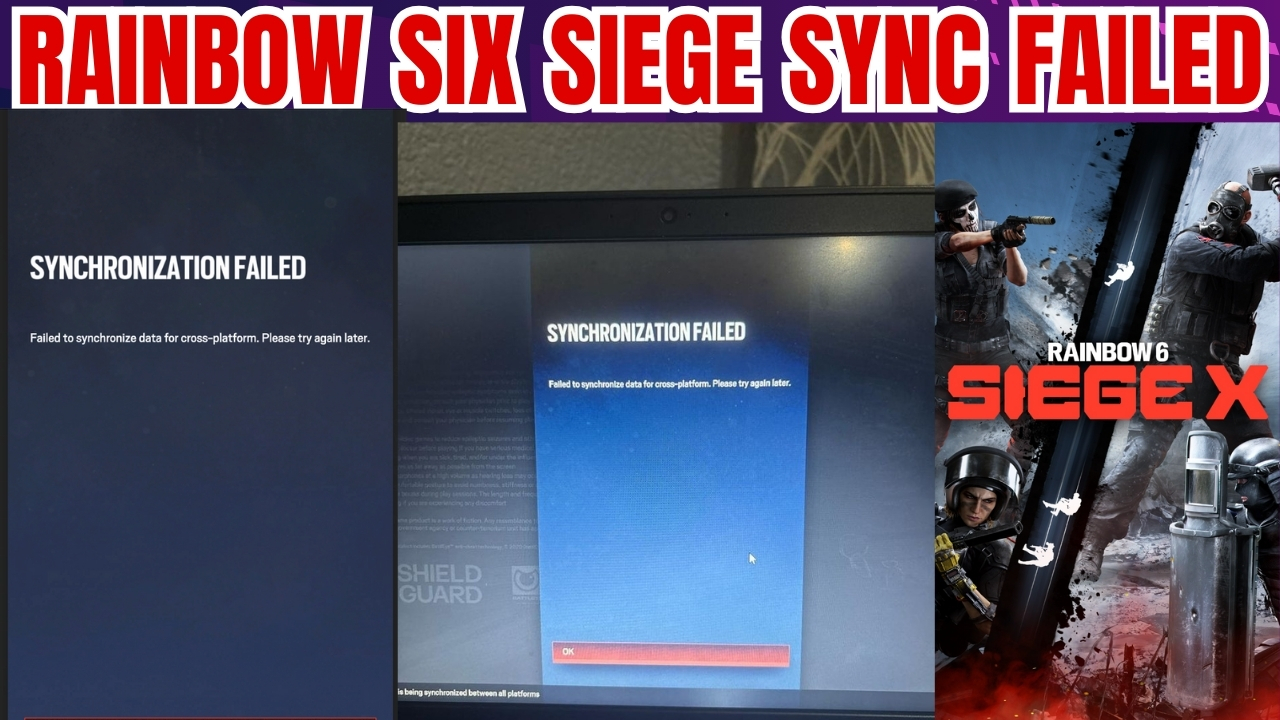
Why Rainbow Six Siege Sync Failed Error Occurs and What it is?
This is just a synchronization issue which can occur due to network connectivity issues or due to corrupted cache. It can also happen due to Server related issues as well.
There are many different solutions to fix this issue and each and every solution will help you resolve and this we tried and it worked.
Easy Solution to Fix Siege Sync Failed Error
On your windows computer or laptop, Click on Windows search bar and type ubisoft connect and right click on it and select Open File location, it will open ubisoft connect shortcut here. You need to go to the exe files of ubisoft connect here. SO, you need to right click on the Ubisoft connect shortcut here and click on Open file location again.
Now, it will take you to exe file location of Ubisoftconnect exe file and there will be 4 ubisoft connect exe files here, Now, Just Right Click on Ubisoft Connect exe file and select Properties, Go to Compatibility tab -> Now, Select the check box Run the Program as an Administrator and then Click on Apply.
Now, close all open applications and Open Rainbow Six Siege and the issue will be resolved and it will sync successfully and if needed you can try restarting your computer.
Reset Network Settings
Open settings on windows -> Select Network and Internet -> Click on Advanced Network Settings -> Click on Network Reset -> Click on Reset Now and Click on Test and Confirm Network Reset and wait for windows to reset your network and restart your windows.
Perform Ipconfig /renew Using CMD (Command Prompt)
In the windows search bar -> type cmd and right click on it and select Run as Administrator
Now, Enter these commands one by one:
ipconfig /release
ipconfig /renew
ipconfig /flushdns
netsh winsock reset.
Type Exit and Restart your Computer.
Change DNS Settings
Click on windows search bar and type control panel and open it. Now, in the control Panel -> Open Network and Internet. Now, Open Network and sharing center. Double click on Network Adaptor here and Click on Properties. Now, Select Internet Protocol Version 4 here and Select Properties. Now, Select Use the following DNS Server Address and Enter Preferred DNS as 8 8 8 8 and for Alternate DNS server -> Enter 8 4 4 8 and click ok and restart your computer and check.
What is the file Path to Open UBISoft Connect exe File?
The File path from your local drive c to ubisoft connect is -> This PC -> Program Files (x86) -> Ubisoft -> Ubisoft Game Launcher and in this folder you will find ubisoft connect exe files here.
If the problem still persists, check Ubisoft server status or reinstall Ubisoft Connect.
Frequently Asked Questions
Why does this sync failed error keep popping up while playing?
Most of the time, it’s not the game itself. What usually happens is Rainbow Six Siege tries to sync data through Ubisoft Connect, but Windows blocks it quietly. So even though everything looks fine, the error keeps coming back every few seconds.
My internet is working fine. Why am I still seeing this error?
This is actually very common. Even with good internet speed, the connection between your PC and Ubisoft services can get stuck due to network related issues and the game just fails to sync until you fix it manually.
Does running Ubisoft Connect as administrator really make a difference?
Yes, Without admin permission, Ubisoft Connect may not be allowed to update or sync background files. Once you run it as administrator, Windows stops blocking those actions, and the sync issue often disappears.
Is this because Ubisoft servers are down?
Sometimes, but not usually for long. If Ubisoft servers have an issue, the error should go away on its own after some time. If you’re seeing the same message again and again for hours, then it’s more likely a problem on your PC or network.
Will resetting my network cause any problems?
No, it won’t harm your system. Your files and games stay untouched. You may just need to reconnect to Wi-Fi or set up your VPN again if you use one. Other than that, it’s safe.
Is it okay to change DNS settings?
Yes, and it works and it’s completely safe. In fact, it helps when the default ISP DNS is slow or unstable.
Do I really need to reinstall the game if nothing works?
In most cases, no. Reinstalling is not required. The problem usually comes from Ubisoft Connect permissions or network settings, not the game files themselves.
Can this sync error come back later?
Yes, it can. Things like Windows updates, Ubisoft Connect updates, or network changes can bring it back. If that happens, repeating the same fixes usually solves it again.
Does this work on Windows 10 and Windows 11?
Yes. These fixes work on both Windows 10 and Windows 11, including recent updates.