


If you use Face ID on the new iPhone 16 Pro Max or iPhone 16 Plus, you know the routine: the phone recognizes your face, the padlock unlocks, but you still have to swipe up to see your Home Screen. In 2026, this extra gesture feels redundant.
🔬 Lock Screen Logic Hub
| 🔴 Desired Action | 🔵 Hub Solution Path |
|---|---|
|
Direct to Home
Unlock and open without swiping up.
|
Action Button Fix |
|
Legacy Bypass
Gesture bypass for iPhone 13/14 models.
|
Back-Tap Method |
While Apple does not provide a direct “Auto-Unlock” switch in Settings, our lab has verified a clever workaround using the Action Button and iOS Shortcuts that lets you jump directly to your apps with a single press.
Why doesn’t Apple let you disable the Swipe Up?
Our technical analysis shows that Apple enforces the “Swipe Up” gesture for two reasons:
- Notification Privacy: It allows you to read your notifications on the lock screen before entering the app grid.
- Accidental Pocket Unlocks: Without the swipe gesture, the iPhone could unlock inside your pocket if the camera accidentally catches a glimpse of your face.
Method 1: The Action Button “Home Gate” Shortcut
This is the most reliable method for iPhone 15 Pro and the entire iPhone 16 lineup.

- Open the Shortcuts App and tap the + (Plus) icon.
- Tap Add Action, search for “Go to Home Screen,” and select it.
- Name the shortcut “Auto Unlock” and tap Done.
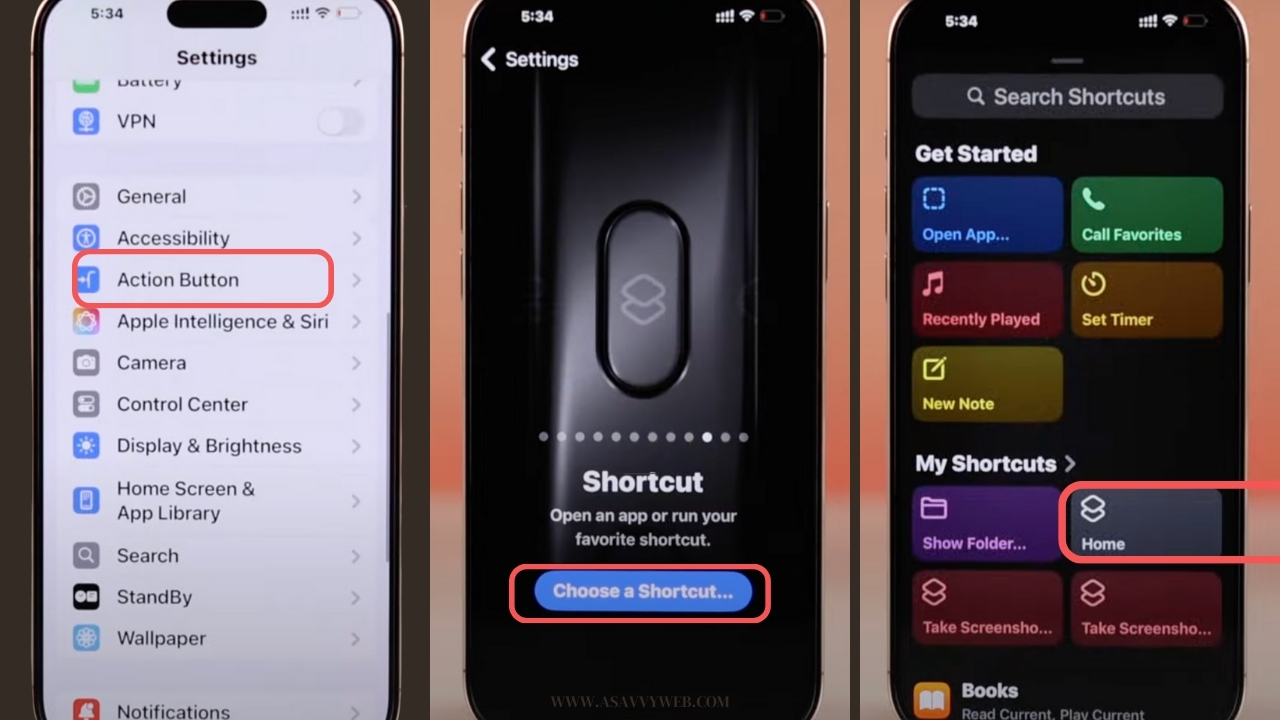
- Go to Settings > Action Button.
- Swipe to the Shortcut option and select the “Auto Unlock” shortcut you just made.
- The Result: Now, when your phone is locked, simply press the Action Button. The phone will use Face ID and immediately slide to the Home Screen—no swiping required.
Method 2: The “Back Tap” Bypass (For iPhone 14 & 13)
If your iPhone does not have an Action Button, you can use the internal accelerometer.
1. Go to Settings > Accessibility > Touch.
2. Scroll to Back Tap.
3. Select Double Tap and assign it to the Home action.
4. How to use: When you see the lock open via Face ID, tap the back of your phone twice to jump to the Home Screen.
Cant See Swipe up to Open Option on iPhone 16 lock screen?
Some users have reported that the “swipe up to open” option is no longer consistently available on their iPhones after updating to the latest version. In some cases, the option appears briefly before disappearing, while in others, it only becomes visible intermittently, often after the iPhone’s screen is touched.
Technical Summary Checklist
- Hardware Required: iPhone 15 Pro / 16 Series for Method 1.
- Software: iOS 18.3 Verified.
- Expert Tip: If you find the phone unlocking too often, toggle “Require Attention for Face ID” to ON in your Face ID & Passcode settings.
Related iPhone Hacks: